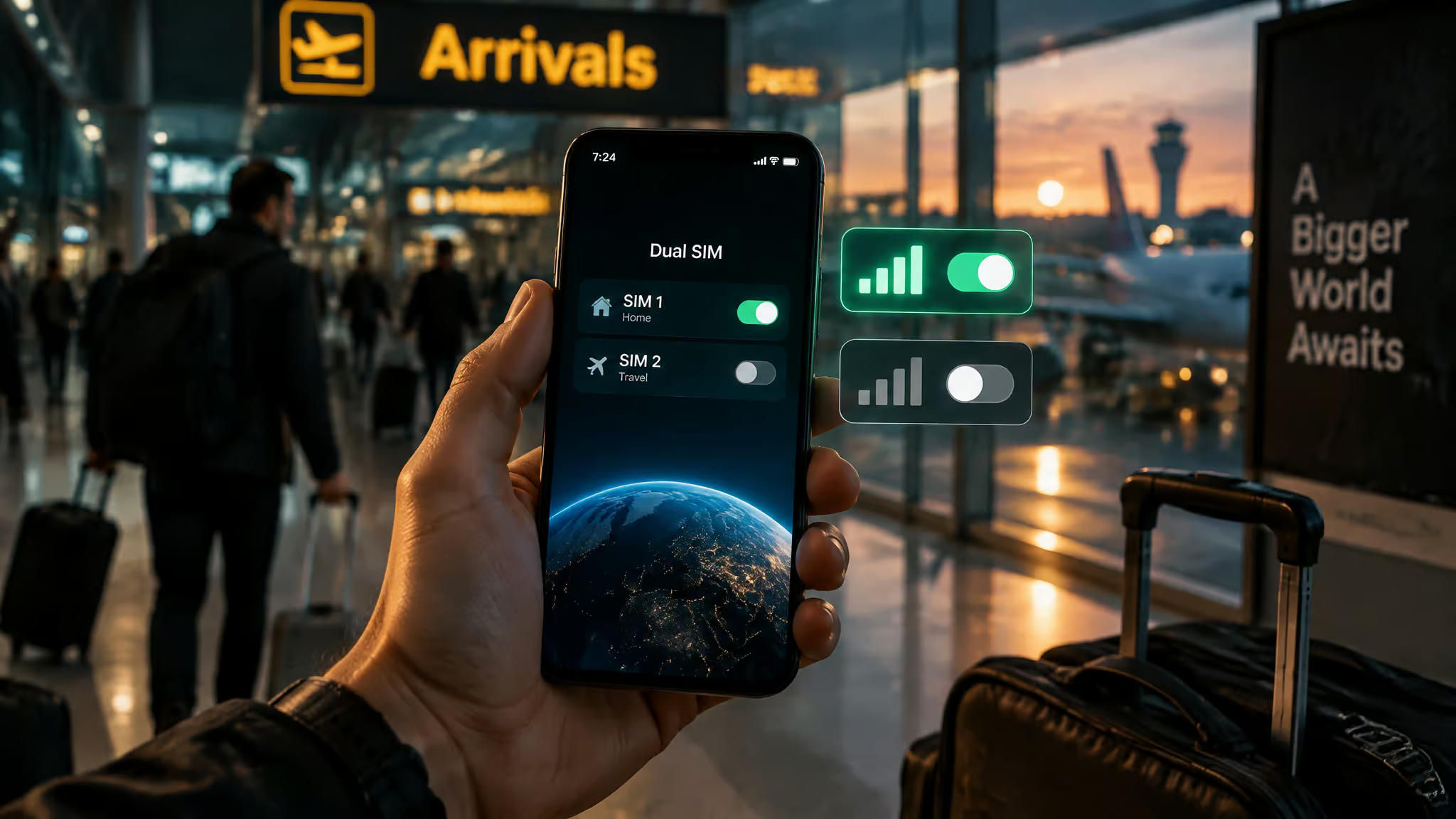
You land, the phone lights up, full signal bars, four of five, maybe five of five. And not a single app will load. Google Maps spins. WhatsApp spins. You’ve got connectivity and nothing at the same time, and the roaming toggle you figured should be off is exactly the one that’s wrecking your afternoon.
Here’s the answer up front, because most guides dance around it: don’t turn roaming off on your eSIM. Turn it off on your home line. The split is the whole game. Data Roaming stays ON for the travel eSIM, OFF for the home SIM, your cellular data line gets set to the eSIM, and one extra toggle most people never touch, Allow Cellular Data Switching, gets killed. Flip those four things and the surprise-bill fear mostly evaporates.
Key Takeaways
Data Roaming goes ON for the travel eSIM and OFF for the home SIM; on a prepaid travel eSIM, roaming doesn’t cost extra, the data just comes out of what you already bought.
Allow Cellular Data Switching is the sneaky one: leave it on and your phone can quietly flip data back to your home line, which is where real bill shock comes from.
Never delete the eSIM as a first troubleshooting move; some profiles can’t be re-downloaded with the same activation code.
Table of Contents
The four-setting default
Yes, keep roaming off your home SIM. The full setup, in one place:
- Home line Data Roaming: OFF. This is the cheap insurance. Surprise charges live here, not on your eSIM.
- Travel eSIM Data Roaming: ON. Counterintuitive, but it’s a technical necessity, not a fee. More on why below.
- Cellular Data line: set to the travel eSIM. One toggle, and it’s the one people skip. If the data line still points at your home SIM, everything you do online runs through your carrier’s international rates.
- Allow Cellular Data Switching: OFF. This is the setting that quietly undoes all your work when coverage dips.
Buyer rule: Roaming ON for the travel eSIM, OFF for the home SIM, data line set to the eSIM, data switching killed. Four toggles, most of the bill-shock risk gone.
Do those four and you could stop reading right now. But one decision’s worth making before you close the tab: if you genuinely don’t need your number abroad, no calls, no texts, no bank verification codes, turn the home SIM off entirely. That’s the only way to fully block carrier charges. It’s the nuclear option: strongest protection, zero texts getting through.
Your call. I’d keep it on, because getting locked out of your bank while traveling is its own special headache. If you want the deeper dive on that trade-off, there’s a whole piece on whether to turn off your primary line with a travel eSIM.
Why travel eSIMs need roaming on
Most travel eSIMs require Data Roaming ON because they don’t run their own networks. They connect through agreements with local partner carriers, and your phone labels that connection as roaming even though you prepaid for the data. The label spooks people for no reason.
When roaming’s off, you get the classic failure: full bars, dead data. It’s the most common setup mistake going. The toggle is your phone’s permission slip; the plan is the price tag. On a prepaid eSIM, roaming ON doesn’t add a charge, the data just comes out of the package you bought, within the destination and validity window.
Two things worth untangling. Mobile Data is permission for cellular internet generally; Data Roaming extends it off your SIM’s home network. A travel eSIM may need both switches on. And no, turning roaming off doesn’t kill Wi-Fi. Your hotel internet works fine.
One honest caveat: not every eSIM needs roaming. Some local or carrier-issued ones don’t. The plan’s own activation instructions beat any general rule.
How bill shock actually happens
The eSIM isn’t what bills you. Roaming charges with an eSIM setup come almost entirely from the primary SIM, through three mechanisms.

Data switching. Allow Cellular Data Switching silently flips your data back to the home line when the travel eSIM’s coverage dips. You don’t see it happen. Your phone just starts pulling paid international data on your carrier’s terms.
Background usage on the home line. If home-line roaming is left on, an overnight OS update or cloud backup can quietly chew paid data. The recurring pattern: eSIM installed, home line never consciously touched, days later a charge shows up and the usage appears on the line you “never used.”
Calls and texts. Turning off data roaming does not stop your home carrier from billing calls and texts made abroad. That surprises people every time. SMS and voice ride the home line independently of the data toggle.
The practical controls: use your phone’s built-in data warnings and the provider app’s alerts, pause cloud photo and video backups, hold OS and app updates until you’re on Wi-Fi, restrict background data, and limit hotspot sessions since some plans treat tethering differently. None of it’s glamorous. All of it keeps the package intact.
iPhone settings: iOS 26 flow vs manual
On iPhone, the answer’s the same: roaming stays on for the eSIM, off for the home line.
The iOS 26 route
If you’re on iOS 26, a Turn On Travel eSIM notification may appear when you land. Tapping it offers Travel eSIM Only or Travel eSIM and Current eSIM (if both lines stay on, home-eSIM fees are still possible), then a Low Data Mode choice. iOS 26 may also ask at purchase whether the eSIM is for home or travel, and it can restore your home SIM automatically on the way back. One thing it won’t do for you: installing an eSIM before your trip isn’t the same as activating it, so timing matters for when to set up your eSIM before you travel. Note the “may.” The prompt does most of the work when it shows up, but don’t count on it appearing.
The manual route
Everything earlier is more hands-on. Settings > Cellular > Cellular Data, pick the travel eSIM, then Cellular Data Options > Data Roaming on that line only. Kill Allow Cellular Data Switching while you’re in there. On iOS 18 and earlier, also enable Turn On This Line for the eSIM and switch roaming off on the primary SIM yourself.
Android and Samsung settings
Same idea, different menus, and the answer doesn’t change: roaming on for the travel eSIM only.
Pixel and generic Android
Open Settings > Network & Internet > SIMs. Enable Mobile Data and Roaming on the travel eSIM, make it the default data SIM, turn off Automatic Data Switching, and switch roaming off on the primary SIM how to use an eSIM when travelling covers this setup in more depth. Two minutes, once, works all trip.
Samsung One UI
Galaxy owners, don’t hunt for the Pixel menu. Go to Settings > Connections > SIM Manager, enable the travel eSIM as your preferred data SIM, then Connections > Mobile Networks > Data Roaming on. If you see Data Switching or Data Switching and Backup Calling, turn it off. Same sneaky setting, different name.
The honest caveat most articles skip: some Galaxy phones don’t have a per-SIM roaming switch at all. In that case, pick the travel eSIM for data and disable switching, a basic guide to using an eSIM while travelling covers why this is the go-to move for roaming. That’s the fallback, and it works.
Keeping your number: calls, texts, verification codes
Yes, you can still text. SMS and calls ride the home line independently of the data-roaming toggle (and can still bill at home-carrier rates), while iMessage and WhatsApp run over the travel eSIM’s data. Different pipes.
Your messaging identity and your data path are separate settings. Set the data line to the travel eSIM, keep your home number as your iMessage Send & Receive address, and nobody you’re texting knows you switched SIMs, this is exactly how to keep your home number reachable while using a travel eSIM. WhatsApp stays tied to your number no matter which SIM feeds it data. Per Apple, FaceTime and iMessage keep working on the home line even if only the travel eSIM is active.
So the real decision is this: home SIM on with roaming off means calls, texts, and verification codes (bank codes included) still come through, though calls and messages abroad can still bill. Home SIM fully off means strongest protection and nothing gets through. Pick based on whether you need those texts. As for whether it’s safe to keep your number active: it’s a normal, supported configuration, not a hack. The risk is billing, not breakage.
High-risk roaming zones
Cruise ships are the big one: Airplane Mode plus ship Wi-Fi is the play. Cellular at sea routes through maritime satellite networks that bill per-MB at brutal rates, and that’s exactly how cruise bill shock happens. If you must have connectivity on board, a cruise pass is the alternative. GigSky sells plans specifically for Carnival, Disney, and MSC.
Three more zones catch travelers off guard:
- In-flight. Prefer onboard Wi-Fi. If you enable roaming in the air, know the day rate first. Flexiroam sells 24-hour in-flight plans at $10, $18, and $25.
- Border towns. Your phone can latch onto a foreign carrier without you noticing. Manually lock to a specific network or briefly disable roaming. Takes less time than the surprise bill does.
- Short airport layovers with auto-switching on are riskier than they feel.
Troubleshooting: signal but no data
Full bars with dead data almost always means the eSIM’s roaming toggle is off. Check that before anything else. Then, in order:
- Confirm the plan covers your destination and still has data or balance left. The dumbest cause is the most common.
- Airplane Mode off and on, wait about 30 seconds.
- Restart the phone. Boring, effective.
- Keep network selection on automatic unless the provider says otherwise.
- Check the APN against the provider’s instructions. Most eSIMs auto-configure it, so if nothing’s named, don’t touch it.
- Confirm data switching is off and the primary SIM isn’t selected for data.
Red flag: The delete-and-reinstall instinct can permanently kill an eSIM. Some profiles can’t be re-downloaded with the same activation code, so deletion is the last resort.
And the critical warning: never delete the eSIM as a first move. Some profiles can’t be re-downloaded with the same activation code, and the delete-and-reinstall instinct can kill an eSIM permanently. Work down the list. Deletion is the last resort, not the opening gambit.
Does your phone support this?
iPhone XS, XS Max, or XR and later; the iPhone 13 series runs two eSIMs at once while 12/11/XS models run one at a time; US iPhone 14 models are eSIM-only. Galaxy S20 and later, and most phones made after 2018 qualify. Check carrier unlock under Settings > General > About for No SIM Restrictions, and dial *#06# to see your EID. China mainland is its own case: only the iPhone 17e and iPhone Air support eSIM there, mainland-carrier eSIMs won’t work on devices bought outside the mainland, and worldwide providers’ data eSIMs are the workaround.
Three ways to get connected
Roaming with your existing carrier, a local carrier’s eSIM, or a prepaid data eSIM from a worldwide provider, those are your three options, and the four-setting roaming rule applies to every one of them.
Roam with your carrier
Sometimes the easier move. Some plans include international roaming free in select countries, and travel passes bought ahead can be affordable. Roaming with an eSIM works the same as with a physical SIM; you just skip the store trip and the fiddly swap.
Local carrier eSIM
The hands-on route. Prepaid plans via QR code or the carrier’s app before the trip, or at an airport kiosk. Some countries want passport ID for a local SIM, so bring it. Postpaid for longer stays may need proof of local residency. The genuine perk: many local plans include an actual local number, useful for deliveries and local calls.
Worldwide provider
The low-effort route most people want. Providers cover 190+ countries with data-only plans, bought in an app before boarding. And to answer the Airalo question directly: yes, prepaid travel eSIMs like Airalo need Data Roaming ON for the same partner-network reason, and it doesn’t cost extra.
For sizing, rough benchmarks: Maps runs about 5MB an hour, social around 50MB, music about 100MB, SD video roughly 1GB, HD around 4GB.
Which travel eSIM provider?
The seemingly contradictory verdicts aren’t. TechRadar names Ubigi best overall for 2026 (global scope: 200+ destinations, unlimited Europe from $28), while Cybernews ranks Saily best for Germany (4.9 from weighted testing of 12 providers). Different questions, different answers. Prices may vary, but here’s the landscape:
- Ubigi: 5GB global plan at $30, unrestricted hotspot use, offline top-up in the app. Code TECHRADAR takes 10% off.
- Saily: Nord Security product, Standard plan $29.99 for 5GB, Germany from $4.04, free security tools including an ad blocker that reportedly saves around 30% of data.
- Airalo: 200-country catalog, Discover Global from $8.50, Germany from $3.50. Code FUTURE15 takes 15% off.
- AloSIM: plans from $4.50, but no Africa plans and no unlimited option.
- Airhub: 190+ countries, some plans bundle minutes and SMS, good for remote areas.
- Nomad: strong value, rated 4.6 for heavy data users, but weaker in Latin America.
- Flexiroam: 500+ networks, the in-flight plan option.
- GigSky: cruise plans for Carnival, Disney, and MSC.
- Jetpac: includes SmartDelay airport lounge access for up to 5 travelers.
- Holafly: unlimited data in about 160 countries, pricier, 5-day USA plan at $19.
- Firsty: free ad-supported tier in 120+ countries.
- ByteSIM: single-source details, so take it with less confidence than the rest.
Disclosure, plainly: some of those codes are affiliate links. And whatever you buy, the roaming setup doesn’t change.
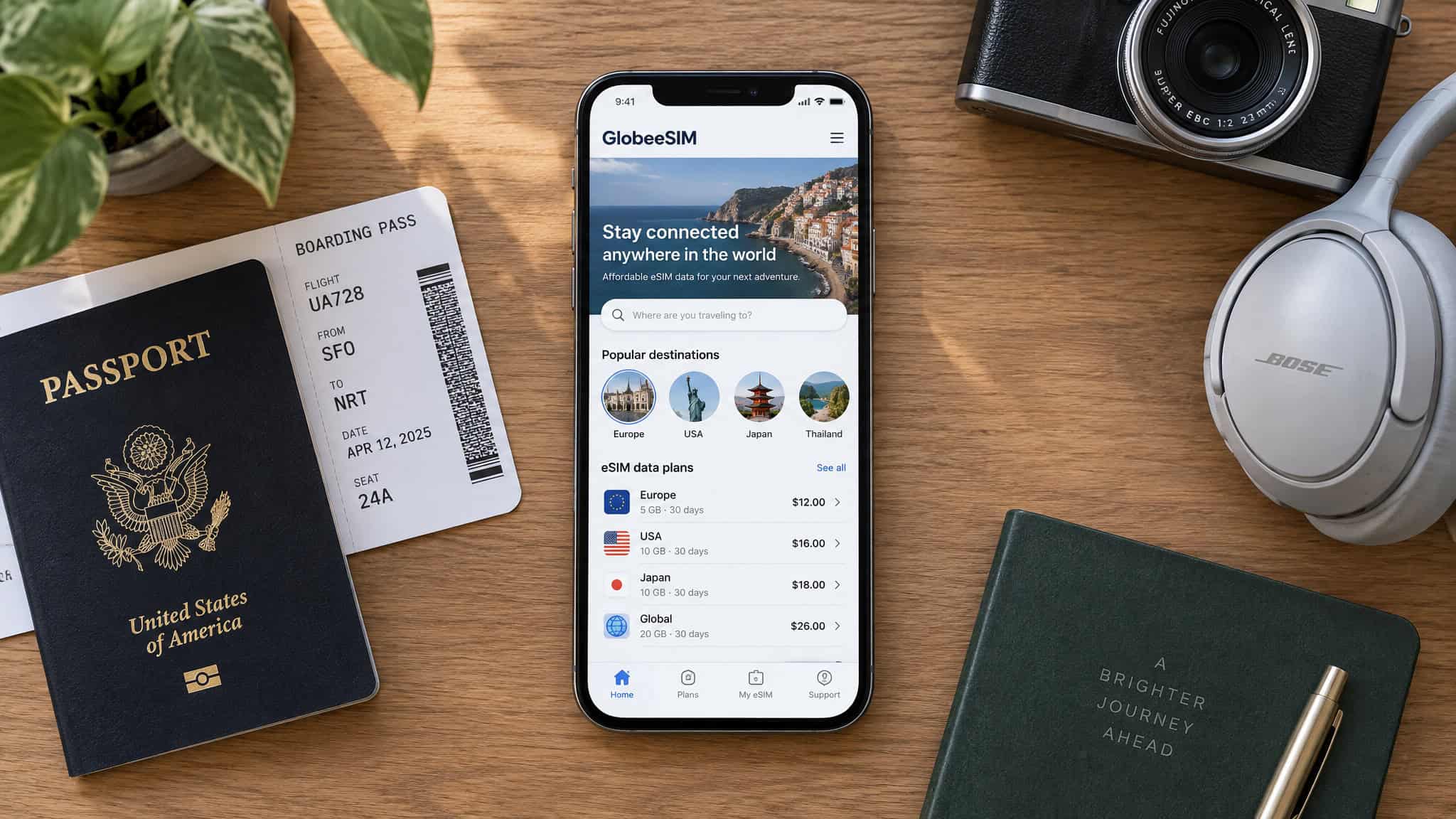
Before you fly and when you return
First, the pre-trip question: leaving data roaming on at home has no charge effect domestically. The risk starts when you cross a border, which is exactly why you set the toggles before the flight.
Before flying:
- Set the data line to the travel eSIM
- Roaming on for that line only, off on the home line
- Screenshot the plan details. When the app won’t load abroad, the screenshot is the plan
- Set data alerts
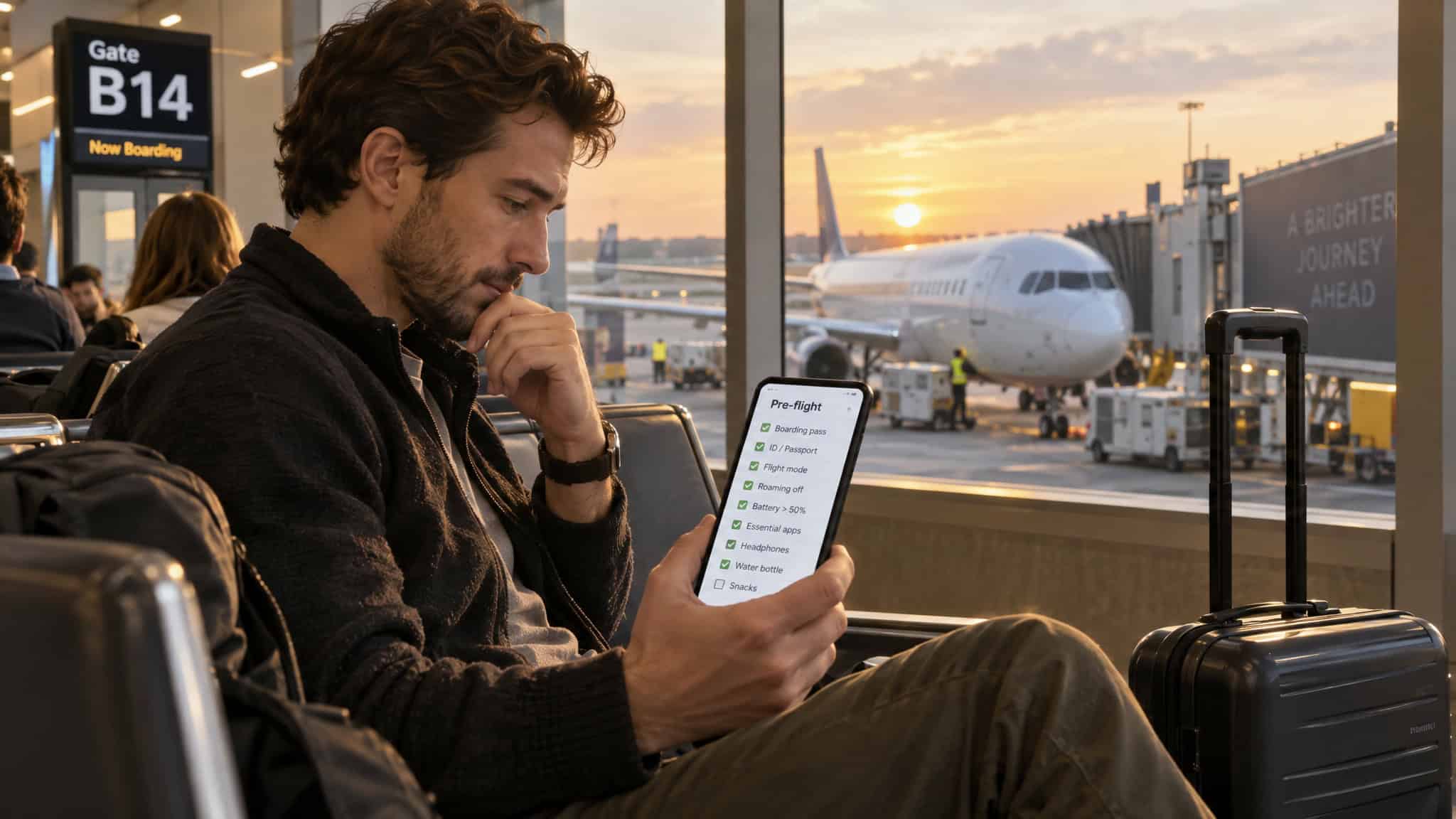
On landing, check it: turn off Wi-Fi for a moment, load a website or map, confirm the travel eSIM is serving data, and check per-SIM usage so you know the eSIM is eating the data, not your primary line.
On return: iOS 26 may restore your home SIM automatically depending on region. Otherwise, confirm Turn On This Line for your primary eSIM and switch off unused travel eSIMs. That cleanup is the step everyone skips, and it’s the one that bites later.
You don’t turn roaming off on your eSIM. You turn it off on your home line, kill data switching, and go enjoy the trip. And if you don’t need your number abroad at all, shut the home SIM off entirely and stop thinking about it.
Frequently Asked Questions
What are the downsides of using an eSIM?
The main gotchas are setup-related, not hardware-related: the roaming toggle has to be on for the eSIM but off for your home line, and Allow Cellular Data Switching can silently flip your data back to the pricier home line. Also, deleting an eSIM can be permanent — some profiles can’t be re-downloaded with the same activation code.
How can I avoid roaming charges when using an eSIM?
Four toggles: Data Roaming OFF on your home SIM, ON for the travel eSIM, cellular data set to the eSIM, and Allow Cellular Data Switching turned off. Then hold OS updates and cloud backups until you’re on Wi-Fi, restrict background data, and watch Airplane Mode on cruise ships and in-flight, where maritime and satellite rates are brutal.
Why does my eSIM show signal but no data abroad?
Full bars with dead data almost always means the eSIM’s Data Roaming toggle is off — it’s the most common setup mistake going. Check that first, then confirm the plan covers your destination and still has data left, cycle Airplane Mode, restart the phone, and verify the primary SIM isn’t selected for data. Don’t delete the eSIM; some profiles can’t be re-downloaded.