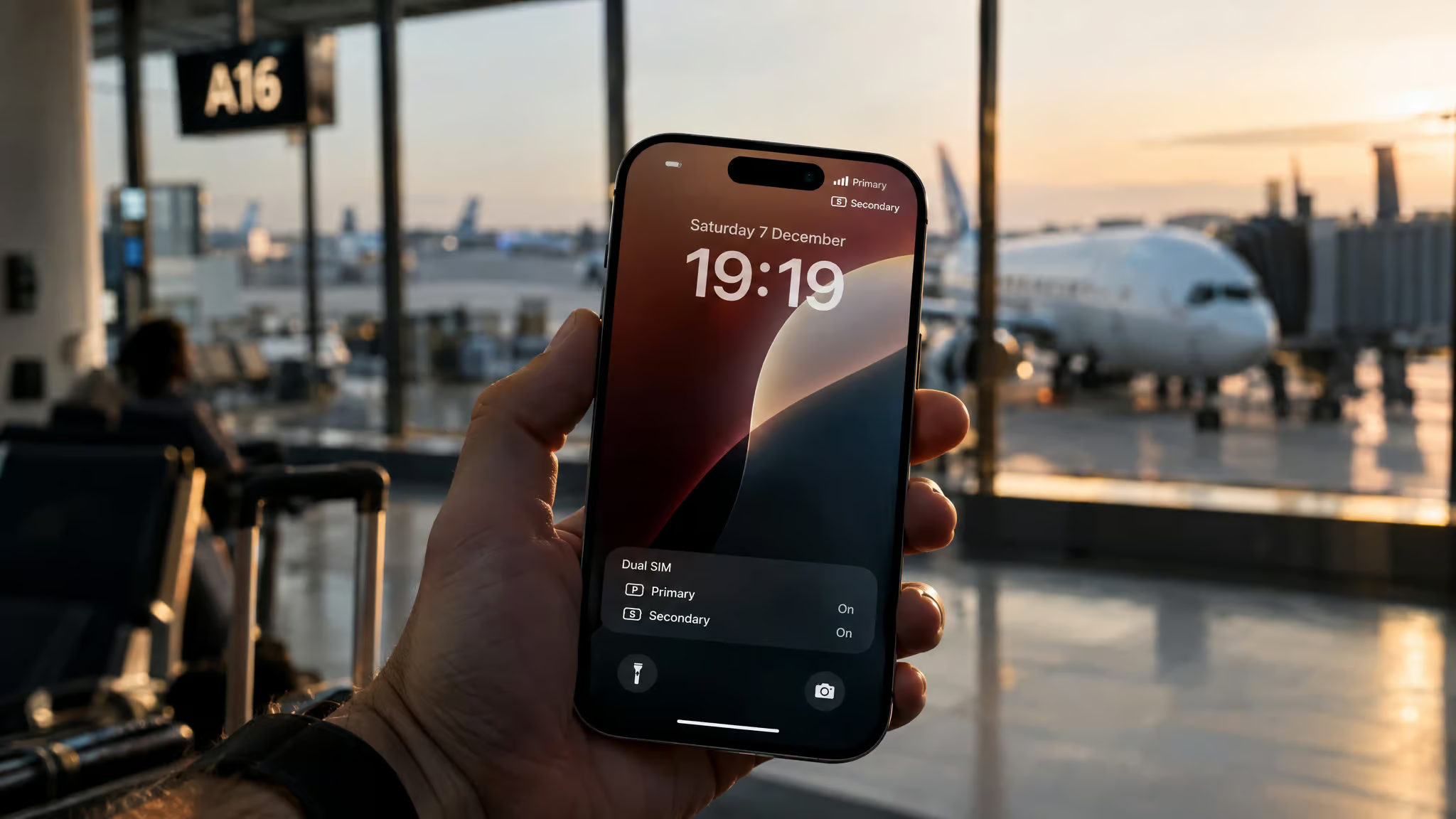
You’re at the gate, phone in hand, and that little “Roaming” indicator just appeared. Your stomach does the math. Somewhere in your head there’s a plan forming: just switch the whole line off, problem solved, no surprise bill waiting when you land.
Put the phone down. The answer to whether you should switch off your main line while running a travel eSIM is generally no, and it’s not close. Your phone can hold both lines at once, your home SIM keeps taking calls and texts, and the travel eSIM carries the data costs. That’s the whole trick.
It’s three settings. Flip those instead of nuking your number, because the moment that line goes dark, your bank’s one-time passwords stop arriving, and suddenly you’re at a foreign pharmacy checkout with a card that won’t verify and no way to fix it from abroad.
Key Takeaways
Both lines stay active at once. Surprise charges come from two toggles only: your home SIM’s data roaming and Allow Cellular Data Switching. The line simply being on doesn’t cost you anything.
Turning off the primary line kills your access to bank one-time passwords and verification codes, and most travel eSIMs are data-only, so it’s often your only callable number.
The five-minute setup: travel eSIM as default data line, home SIM data roaming off, Cellular Data Switching off, Wi-Fi Calling on, iMessage line set to home.
Table of Contents
What Dual SIM Dual Standby actually does with two numbers
Both numbers can be fully live on one phone at the same time. That’s not a hack or a workaround; it’s the entire design. The tech behind it is called Dual SIM Dual Standby, and the plain-English version is this: both SIMs sit registered on their networks simultaneously, so you’re reachable on either number without touching a switch.
Day to day, both lines handle calls, FaceTime, iMessage, SMS, and MMS. Your bank texts your normal number, the code lands. Your mom calls, the phone rings. A travel eSIM doesn’t dim any of that. You don’t lose a single capability on your home line just because a second one exists.
There’s one real limit, and it’s the rule this whole article hangs on: only one line can carry cellular data at a time. You pick which one under Settings > Cellular > Cellular Data. Pick wrong and you’re paying home-network rates for your Instagram scrolling. Pick right and you’re set.
That’s the entire decision. Data is a settings assignment, not an all-or-nothing power state, which is exactly why “turn the line off” answers a question the phone already solved.
One wrinkle worth knowing: most phones run what’s called standby mode, where both lines are registered but only one is truly radio-active at any moment. Newer hardware, iPhone 13 and later, Galaxy S21 and up, Pixel 6 and up, can run both lines fully active even mid-call. This distinction explains a weirdness you may have hit on older phones, and I’ll get to it below.
The roaming-charge fear, quantified (and why killing the line is the wrong fix)
Yes, wrong settings can genuinely cost you money. According to a 2025 European Commission survey, travelers sticking with traditional roaming ended up spending €9.50 per GB more than the EU’s regulated roaming cap allows. So the fear isn’t irrational. Data abroad, badly configured, adds up fast.
The typical mistake looks like this: guy lands, sees the roaming indicator, panics, and switches the whole primary line off. Feels decisive. Then two days later he’s standing at a checkout and the bank’s one-time password never arrives, because the number the bank texts is now dead.
Here’s the category error in that panic move: data roaming is controlled by its own toggle, independent of the line as a whole. Charge risk was never a reason to lose SMS. The fix costs you one settings screen.
Buyer rule: Losing SMS to avoid roaming charges is trading a fixable settings problem for an unfixable one. Toggle data, keep the line.
The three-toggle setup that replaces turning it off (iPhone)
The outcome you want is simple: home number reachable, all data flowing through the eSIM, zero fallback to your home SIM’s data. Following this guide to using an eSIM when travelling, you set three toggles before you leave, and the whole thing takes under five minutes on iPhone. The eSIM profile itself installs in under a minute.
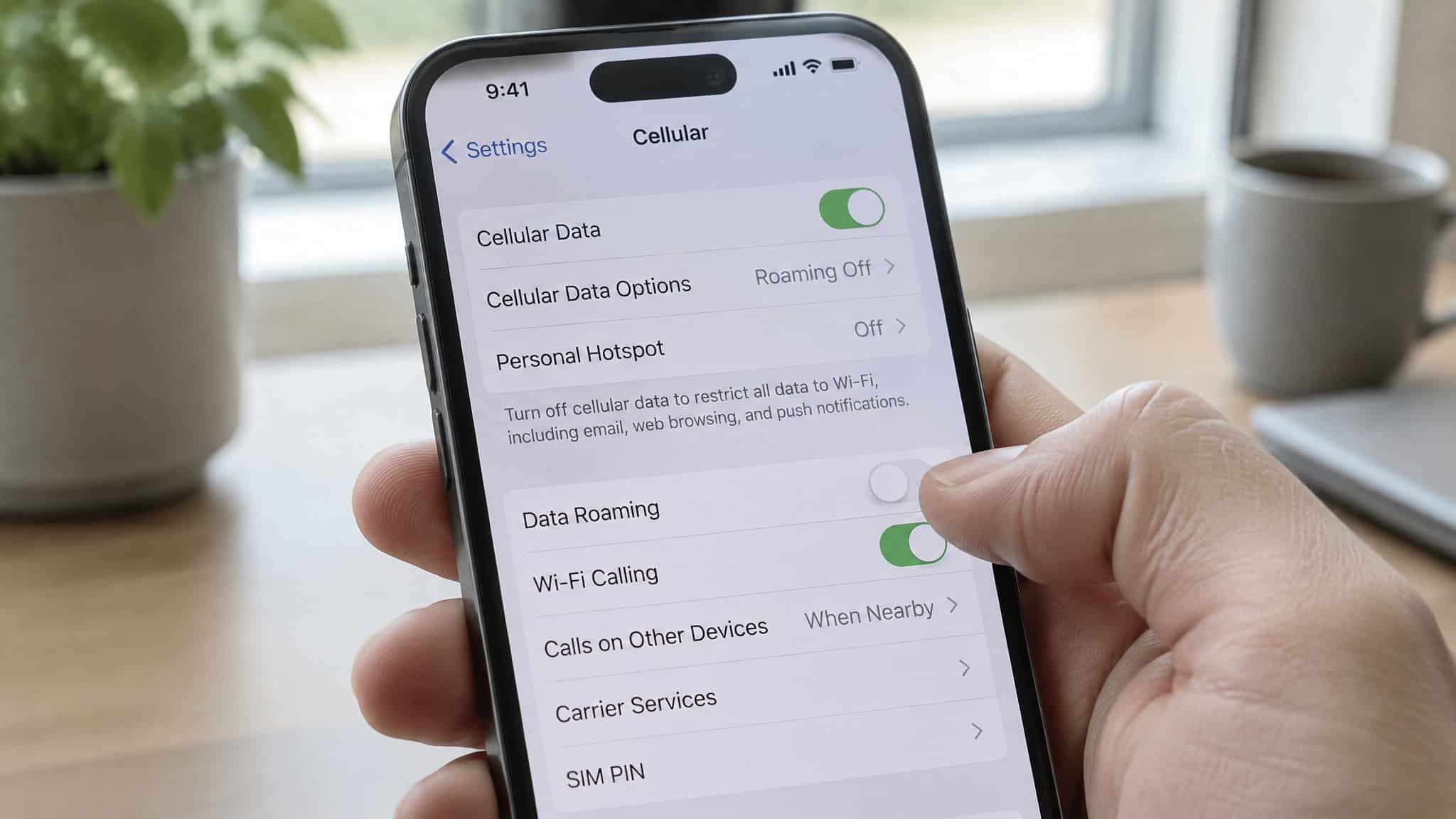
Start with the plan. Buy it, the QR code lands in your email, and you add it under Settings > Cellular > Add eSIM, either by scanning or typing the details, if you’re new to using an eSIM when travelling, that’s the whole trick. While you’re in there, label the line. Sounds trivial until two unnamed plans show up in Settings and you’re squinting at them jetlagged in a hotel lobby at 6 a.m.
“Japan” beats “Secondary.” Apple’s own suggestion is Personal and Business; for travel, name it after what it does.
Now the three toggles, each with its own failure mode if you skip it:
- Travel eSIM as your default Cellular Data line, under Settings > Cellular > Cellular Data. This is the setting that saves you money. Every map, every WhatsApp message, everything online rides the cheap plan.
- Home SIM data roaming OFF. Settings > Cellular, tap your home line, flip Data Roaming off. With this off, your home SIM can’t burn data abroad no matter what. It still takes calls and texts perfectly. That’s its whole job on the trip.
- Allow Cellular Data Switching OFF, found under Settings > Cellular. This is the counterintuitive one. With it on, iOS lets a voice-only line quietly pick up data during calls, which is convenient at home and expensive abroad. That silent fallback to home-SIM data is the number one cause of I used a travel eSIM and still got charged. Flip it off and iOS won’t fall back to your home SIM’s data at all, only one number can use cellular data at a time, so with switching off, the fallback simply never happens.
With it off, data simply won’t run on the other line while you’re on a call. Minor annoyance, worth the firewall.
Two quick housekeeping items while you’re at it: tie iMessage and FaceTime to your home number during setup so nothing routes weird, and if you’re current on iOS, 26 includes a guided setup flow for travel eSIMs that walks most of this for you.
Staying reachable: OTPs, calls, and the missed-call edge case
Your home line keeps receiving calls and codes while the eSIM handles data, and that reachability is precisely why you don’t shut it down, most travel eSIMs don’t come with a phone number at all. The home SIM stays registered on your home network or a roaming partner. Callers notice nothing. Same number, same ring.
The one genuine cost is concurrent calls. If you’re already on a call, a second incoming call only comes through if that carrier supports Wi-Fi Calling. Otherwise it goes to voicemail, and here’s the sneaky part: if that line’s voicemail isn’t set up, sometimes you don’t even get a missed-call alert. Set up voicemail before you fly. It takes two minutes and it’s the difference between knowing someone called and having no idea.
A typical setup that trips people up: silent missed call, confusion, then a check of Settings reveals Wi-Fi Calling was never turned on. If you’ve got one of the dual-active phones mentioned earlier, you sidestep this limit entirely. Call forwarding between your two numbers can also patch the gap. What I won’t promise is zero missed calls, because on standby hardware that’s not how the radio works.
Messaging: which number your texts actually send from
iMessage and FaceTime run on only one designated line at a time, set under Settings > Messages > iMessage & FaceTime Line, while SMS and MMS work on both. When replies come from the wrong number, it’s almost always because the iMessage line was never set back to home before departure. Thirty-second fix, do it at home. RCS, on supported carriers with iOS 18, is line-switchable mid-conversation.
What the travel eSIM can and can’t do
Most travel eSIMs are data-only. No phone number, no minutes. Your calls ride the home line, or apps like WhatsApp, FaceTime, and Zoom over data. For roaming settings, the rule is inverted: leave roaming on for the eSIM line, but turn off roaming for your primary line to avoid charges. Some providers sell plans with local calling minutes if you truly need a dialable number, and notice that the line you were tempted to switch off is your only callable number.
Sizing the plan is straightforward. Light use, maps and messages, runs roughly 150-300 MB a day, so 1-2 GB covers a week. Moderate use with social media is 500 MB to 1 GB daily, call it 3-5 GB for the trip. Streaming and hotspotting pushes you to 1.5-3 GB a day, 10 GB or more.
Working from the road, budget 3-5+ GB daily, which means unlimited or 20 GB+. One country, buy country-specific, it’s cheaper. Multi-country trip, a regional plan suits; on a two-week France-Italy-Spain run, it auto-selects local networks at each border, at slightly higher per-GB pricing. And download offline maps before you leave. That alone saves 200-400 MB a day.
Battery: two active lines add roughly 5-10% drain per day by user testing, minimal on an iPhone 15 Pro or Galaxy S25. Low Power Mode covers the gap. Not a reason to lose OTP access.
One buried question answered directly: yes, you can turn cellular data off on your primary SIM and still receive calls on it. That’s exactly what the per-line roaming toggle does, and it’s not the same as turning the line off. The distinction is the whole game.
Device and carrier compatibility map
Two numbers on one phone works on essentially every modern device, but eligibility has three layers: device generation, regional SIM hardware, and carrier lock.
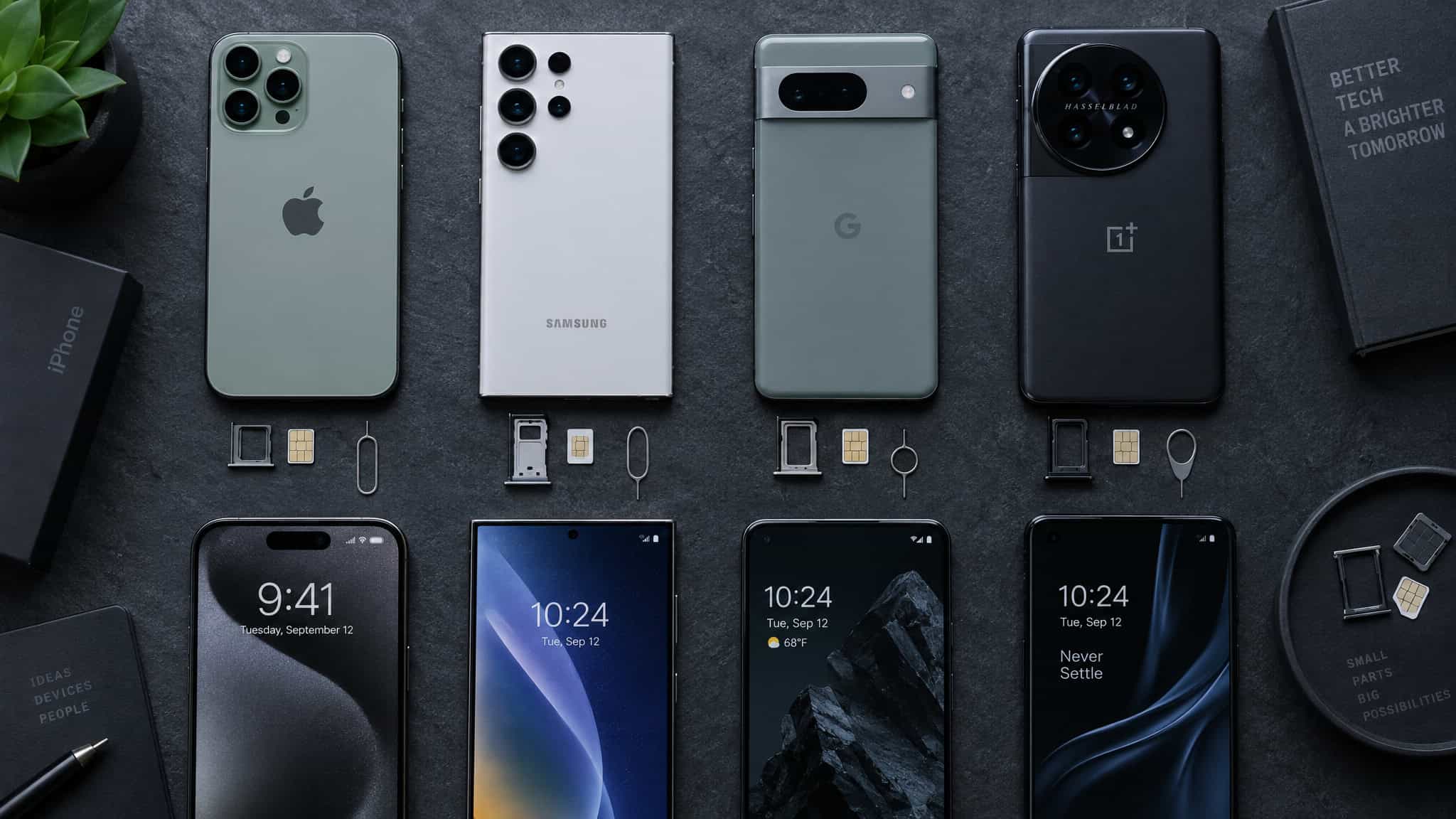
On iPhone, you need an XS, XS Max, or XR or later, and every iPhone since 2018 supports at least one eSIM. The iPhone 13 and up can run two eSIMs at once. US iPhone 14 and later models are eSIM-only, no SIM tray at all, with room for up to eight stored profiles. International models use a nano-SIM plus eSIM, which you can confirm under Settings > General > About. Regional footnotes, stated plainly: in China mainland only the iPhone Air and iPhone 17e support eSIM, and some Hong Kong and Macao models use two physical nano-SIMs instead.
Android is messier. Galaxy S21 and up and every Pixel from the 3 on are safe bets; most post-2020 flagships do eSIM. OnePlus, Motorola, and Xiaomi vary by model and region, so check Settings > About Phone > SIM Status before assuming. The nasty surprise: gray-market and China-sold Androids often have eSIM disabled at the firmware level. No toggle fixes that.
Carrier lock is the last gate. A locked phone limits you to plans from that carrier; an unlocked phone takes any supported eSIM. Work phones on corporate plans can have features blocked by the plan, not the phone, so ask your admin. Two Settings screens will tell you whether this whole setup is even possible, before you spend a cent.
Timing, profiles, and the hidden failure modes
If you’re getting charged roaming despite a travel eSIM, it’s almost always one of two toggles: Allow Cellular Data Switching left on, or home-SIM data roaming left on. Flip both, then call your carrier. First-time charges often get reversed, and the call is worth making.
On timing: install the profile at home on decent Wi-Fi, but wait to activate the data until you land. Some plans start their clock on activation, so waiting protects your days. One more thing nobody asks until it’s too late: profiles are tied to your phone’s EID, meaning the device, not you. Broken or stolen phone means the provider reissues to your replacement, typically within a few hours.
No, you don’t need to delete your travel eSIM after returning home, it can just stay stored. An inactive profile uses no data and costs you nothing, so deletion’s optional. Phones have room for them anyway; an iPhone on iOS 18 stores eight-plus eSIM profiles, and Android typically handles five to ten. Just switch default data back to your home SIM so you’re not confused next month.
Watch the roaming footnote trap. If data roaming is on for your data line, Visual Voicemail and MMS silently break on the voice-only line, symptoms travelers blame on a “broken eSIM.” It’s not broken. It’s a footnote. The other quick fixes, kept short: no connection, toggle Airplane Mode for thirty seconds and confirm automatic network selection.
SMS not landing, toggle the home SIM off and on, or briefly make it the data line. “Already Used” QR error, those codes are single-use and the provider reissues. Slow speeds, check your remaining data first since soft caps throttle, then try switching between 5G Auto and LTE in the Voice & Data section.
When turning the primary line off IS the right call
For most trips, on with data roaming off beats off. But shutdown wins in three narrow cases. One: the eSIM includes local calling minutes, which makes Android’s per-call SIM prompt genuinely useful. Two: your carrier’s roaming provisioning misbehaves even with every toggle correct. Three: you want the number fully silent, full stop.
One caveat before you commit: some South Asian and Middle Eastern countries require in-country SIM registration regardless of eSIM status. Most travel eSIMs come pre-registered by the provider, but check if that’s where you’re headed.
The decision map, stated plainly: worried about data charges, that’s the roaming and switching toggles. Missing OTPs, that’s a line-shutdown problem, so don’t shut down. Missed calls, that’s Wi-Fi Calling. Only go fully off when registration law applies or the line’s a liability.
And for context, eSIM hit 1.4 billion connections worldwide by the end of 2024, projected to pass 3.4 billion by 2030. GigSky, an eSIM partner of Apple’s, called eSIM a game changer, and for once the people selling it aren’t wrong.
The verdict is configure, don’t disconnect. The settings already do what the switch was supposed to do, without deleting your only callable number.
Frequently Asked Questions
How do I set my travel eSIM as the data line and keep my primary SIM for calls on iPhone?
Under Settings > Cellular, set the travel eSIM as your default Cellular Data line, then tap your home line and switch Data Roaming off, then turn Allow Cellular Data Switching off. Tie iMessage and FaceTime to your home number, and label the lines clearly — ‘Japan’ beats ‘Secondary’ when you’re squinting at Settings jetlagged. The whole thing takes under five minutes.