
Tired of laggy matches, cluttered desks, and sore backs from cheap office chairs? You aren’t the only one. With over 205 million Americans playing video games weekly according to the ESA’s 2025 report, getting your station right is about more than just high scores.
A solid gaming setup transforms how you play.
I’m going to show you exactly how to build a space that looks great and performs even better. We will cover picking the right gaming PC or console, choosing reliable gear like high-refresh monitors, and organizing it all for maximum comfort.
Ready to upgrade your battle station?
Let’s get to work.
Key Takeaways
US Gaming is Massive: The ESA reports that 64% of Americans play video games weekly, and with 83% of households owning a device, planning a setup that works for the whole family is a smart move.
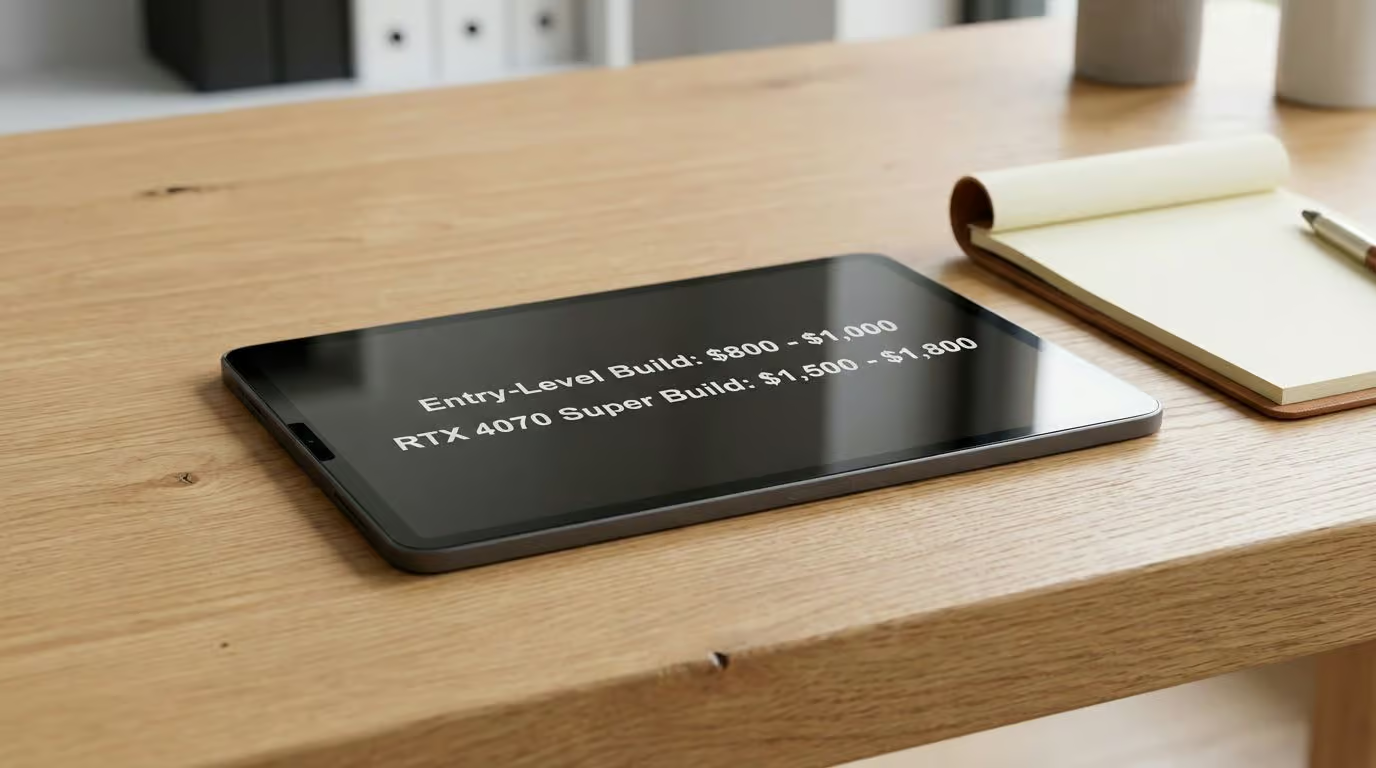
Realistic Budgeting: A solid entry-level PC build in 2026 starts around $800-$1,000 for 1080p gaming, while a 1440p powerhouse with an RTX 4070 Super can run between $1,500 and $1,800.
Platform Choice: PCs offer deep customization with upgrades like Ryzen 7 7800X3D processors, while consoles like the PS5 Pro or Xbox Series X deliver streamlined 4K gaming; both demand Wi-Fi 6E or 7 for lag-free online play.
Gear That Matters: Prioritize mechanical keyboards (like the Wooting 80HE for analog control), ergonomic chairs like the Secretlab Titan Evo, and 1440p monitors with 165Hz+ refresh rates for competitive advantages.
Maintenance & Future Tech: Swap canned air for an electric duster to prevent hardware-killing dust buildup, and look out for AI-driven peripherals that adapt lighting and performance in real-time.
Table of Contents
Planning Your Gaming Setup
Start by thinking about what you want to play and how much space you can use. Grab a tape measure, maybe a notepad, and let’s map out your dream gaming zone with just the right amount of room for your gear—like that massive monitor or extra-wide desk.
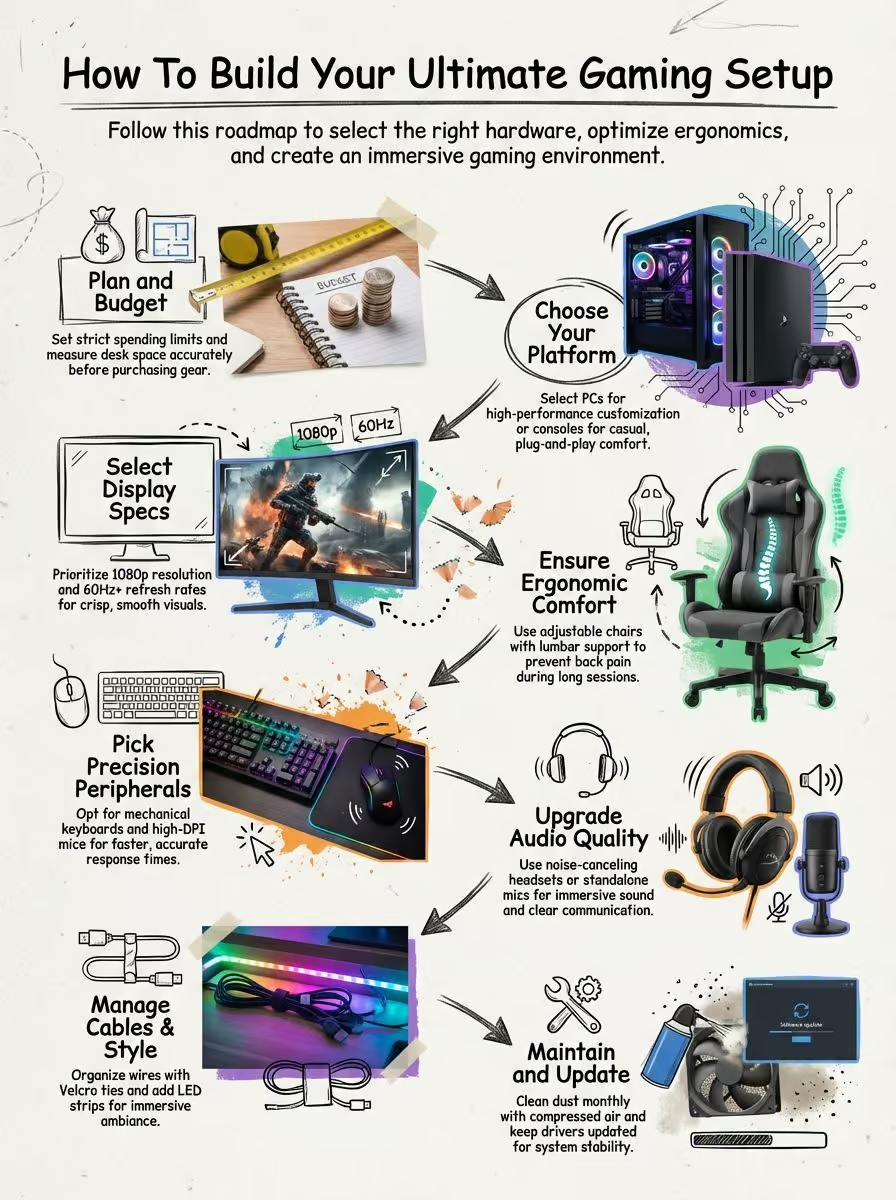
What gaming needs and preferences should I consider?
Think about the games you play most. Do you grind in MMOs like World of Warcraft, chase fast wins in shooters like Valorant, or play local couch co-op with your kids? Since 83% of American households have at least one gamer, your setup might need to double as a family entertainment hub.
High-performance hardware makes a difference. Pick a central processing unit (CPU) that handles your favorite titles without lag. For PC gaming setups aiming for sharp visuals, go for graphics cards with high clock speeds and refresh rates that match your monitor.
Sound quality can shape how much you enjoy each match. Grab noise-cancelling headsets if explosions rattle the room or if late-night sessions demand quiet focus. If looks fire up your motivation, add smart lighting from brands like Govee or Nanoleaf to light up your station.
Ease of use is king. Wireless mice let you move quickly while wired options cut down on latency anxiety. Want more insight into why men like video games? Every setup reflects who sits behind the keyboard and mouse. Budgeting comes next so your wallet doesn’t take critical damage.
How do I set a budget for my gaming setup?
Set a total spending limit before you shop. A basic starter PC setup now hovers around $800 to $1,000, but advanced builds with discrete graphics cards like the NVIDIA RTX 4080 Super can easily push your total over $2,500.
Write down every item you need. List your monitor, power supply unit (PSU), graphics processing unit (GPU), random access memory (DDR5 RAM is the new standard), solid-state drive (SSD), keyboard, mouse, microphone, and headset. Be specific—account for every last screw and cable.
Don’t forget add-ons like USB drives for booting Windows 11 or mini-towers to save desk space. Include furniture like heavy-duty desks or shelves to keep your gear safe. Tools like PCPartPicker are essential here to track current prices and compatibility.
Track costs of decor items such as RGB lights too. Even that Mario figurine counts! Shopping used on platforms like Facebook Marketplace or eBay saves cash if the parts are in good shape. My first i/o shield came from a local seller for $5 and worked perfectly.
Stick to the plan so you don’t blow through rent money after one trip to Micro Center on a “just browsing” mission.
How do I measure my available gaming space accurately?
Grab a tape measure or use the measurement app on your phone. Start with your desk area and measure each edge, left to right and front to back. Mark out space for all hardware: a gaming PC tower, monitors (allow about 24” width per standard monitor), gaming keyboard, mouse pad, speakers, and maybe two large drinks.
Need more room? Full-tower cases can be over 22 inches tall. Watch out for blocking shelves above the desk or tucked-away spaces that restrict airflow.
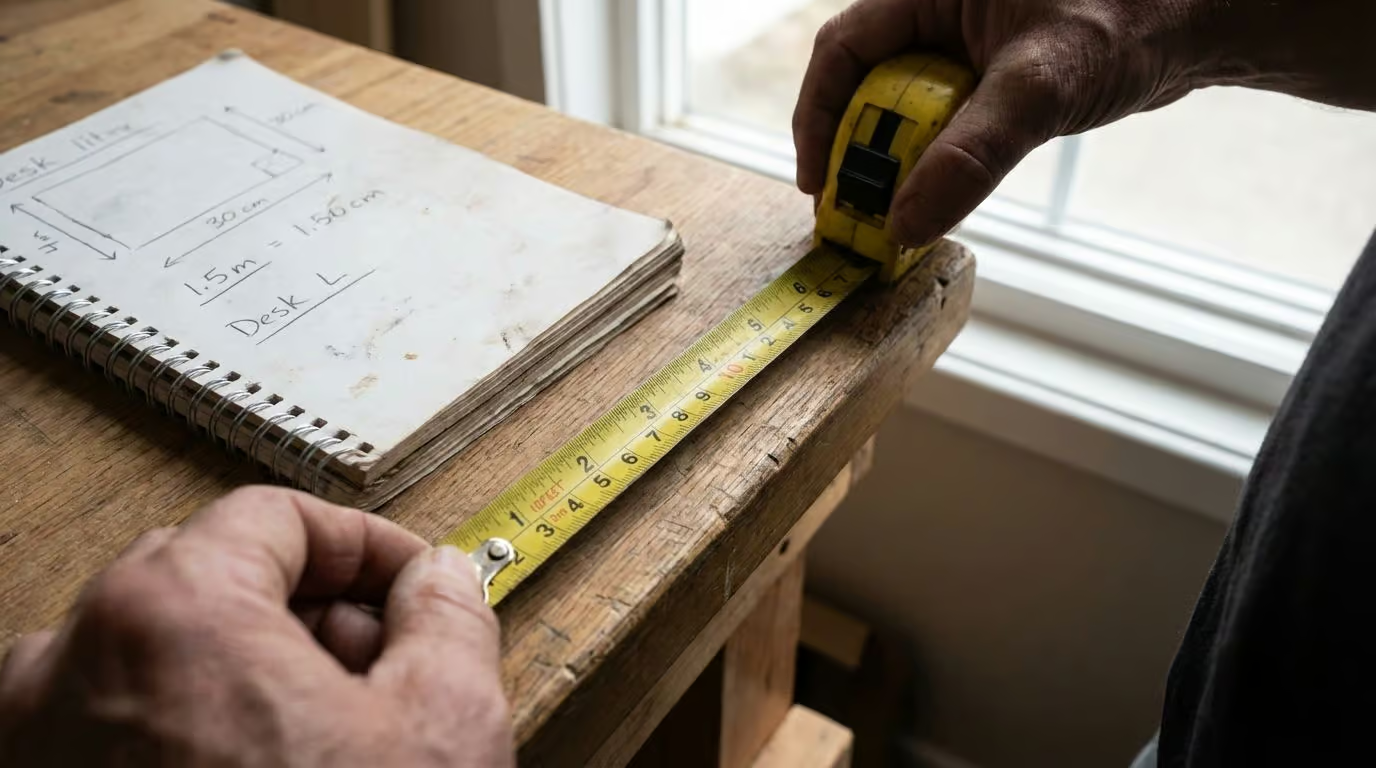
Draw it out on paper if that helps. Sketch every screen and device you plan to add. Leave at least 3-4 inches at the back of desks for cable management and check any doors or drawers that might hit new gear.
Use storage built into desks to stash hard drives, solid-state drives (SSDs), flash drives, and controllers. Less clutter means more style points in your setup.
A tidy gaming zone starts with good measurements. Guesswork leads straight to chaos.
Choosing Your Core Hardware
Picking your core gear sets the stage for hours of fun. Whether you’re into PC gaming setups or consoles like the Nintendo Switch, every choice shapes how sharp your game looks and feels.
Should I choose a gaming PC or console for my style?
This is the biggest decision you’ll make. Here is a quick breakdown to help you decide:
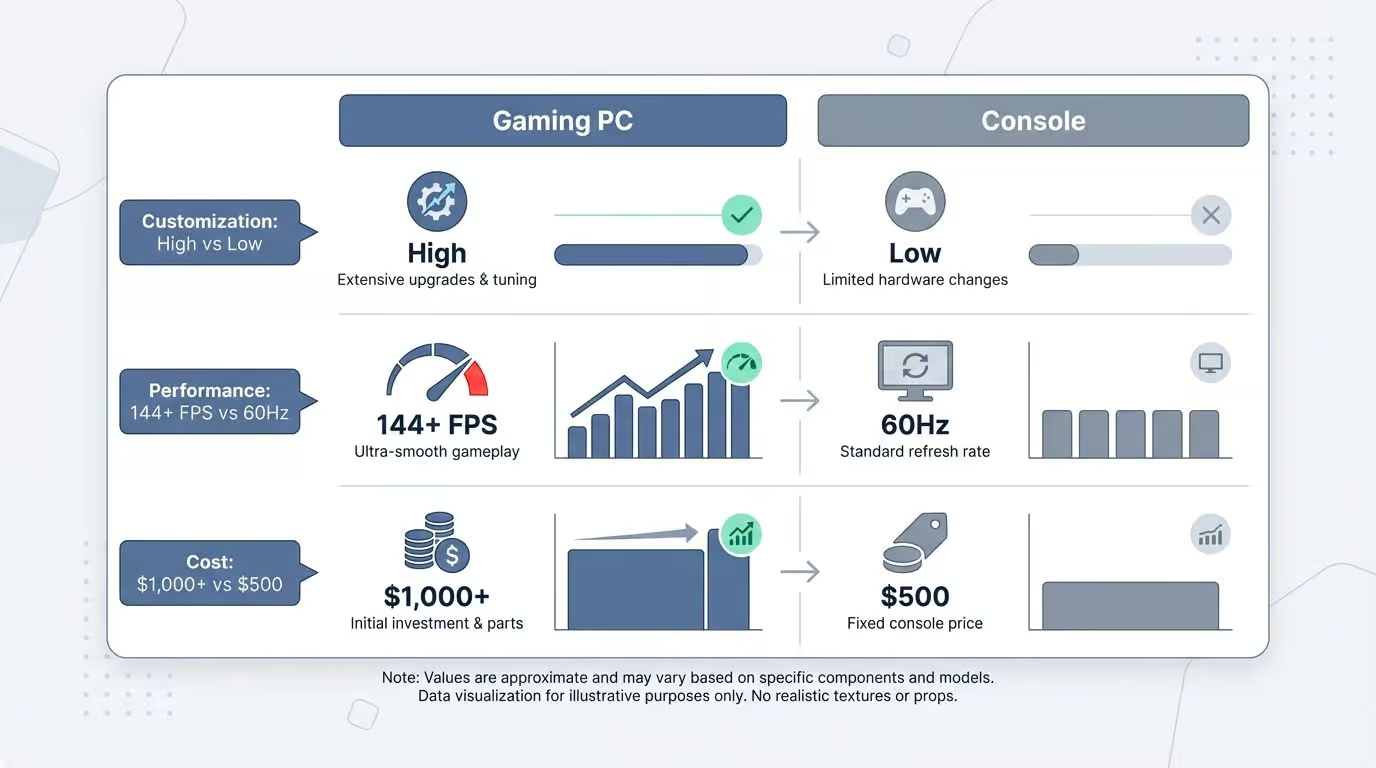
| Feature | Gaming PC | Console (PS5 Pro / Xbox Series X) |
|---|---|---|
| Customization | High. Swap CPUs, GPUs, and ATX motherboards anytime. | Low. What you buy is what you use. |
| Performance | Top-tier. High frame rates (144+ FPS) and native 4K. | Solid. Optimized 4K at 60Hz or 120Hz. |
| Game Library | Massive. Steam, Epic Games, plus older emulators. | Exclusive titles and subscription passes. |
| Cost | Higher upfront ($1,000+), cheaper games often. | Lower upfront ($500-$700), plug-and-play. |
PC gaming setups come loaded with options. You can build a custom rig, crank up the specs, and upgrade parts like your CPU or graphics card as new games drop. Many hardcore gamers use m.2 NVMe SSDs for fast storage and dedicated graphics cards to enjoy higher resolutions on bigger monitors.
Sound wild? It is if you love deep control over settings and tinkering.
Console setups favor easy comfort. Think Xbox Series X in your living room or a Nintendo Switch in hand during a commute. Consoles work great for relaxed play sessions with friends gathered around the TV with zero driver updates required.
People who stream might still need extras like cameras or microphones regardless of their device choice. For those wanting quick access to their favorite online slots & themed games between battles, both platforms get you there. Just make sure you have solid Wi-Fi 6 or 6E performance.
How do I select the best monitor resolution, refresh rate, and size?
After picking between a console or a gaming PC, let’s talk screens. Size matters, but it isn’t everything. For most desktops and pc gaming setups, 1440p resolution (2560 x 1440) is the current sweet spot. It offers a perfect balance of sharpness and performance without demanding a $2,000 graphics card.
If you have the budget, OLED monitors like the ASUS ROG Swift or Alienware AW3423DWF are game-changers. The infinite contrast makes darker games like Dead Space look incredible.
Faster refresh rates make gameplay buttery smooth. Stick with at least 144Hz for PC gaming. If you want the edge in competitive shooters like Apex Legends or Valorant, shoot for a screen that hits 240Hz or higher.
Response time under one millisecond helps kill lag. Nobody wants their cursor trailing behind the action. I once switched from an old TN panel to a modern IPS screen. It changed my game thanks to better colors and wider viewing angles.
“A sharper monitor doesn’t just look pretty; it actually helps you win.” Look for color spaces showing off at least 99% sRGB so all those digital explosions pop. Nvidia G-SYNC or AMD FreeSync will erase nasty screen tearing on your next frag run too.
Think about an ultrawide model if you love wide vistas in racing games or flight sims. It pulls you right into another world with no VR headset needed.
What makes a gaming chair comfortable and ergonomic?
After setting up the right monitor size and refresh rate, nothing kills your back faster than a bad chair. Good gaming chairs feature adjustable armrests (often called 4D armrests), lumbar pillows that hug your lower spine, and headrests to cradle your neck.
For 2026, the Secretlab Titan Evo remains the gold standard for many because of its magnetic head pillow and built-in lumbar adjustment. If you prefer breathable mesh over racing-style leather, look at ergonomic office chairs like the Herman Miller Embody or the budget-friendly Sihoo Doro C300.
Materials play a big part too. Mesh backs breathe better in hot rooms while dense cold-cure foam lasts through years of all-nighters. The best options let you tweak every angle to match your body like it was built just for you.
Always check if the chair fits under your desk so you can move close without squishing your knees. Look for high weight limits as well. Most premium models support up to 300 pounds or more, making them sturdy partners for any marathon session.
How do I pick a durable gaming desk with enough space?
A good gaming desk needs to handle your gear. Check for a desk with high weight capacity. Many solid models hold over 200 pounds, making them perfect for multiple monitors, a heavy gaming PC tower, and bulky peripherals.
Adjustable height features go a long way on comfort. Standing desks from brands like Uplift or FlexiSpot let you switch between sitting and standing, which saves your back during long raids. Pick something wide enough (at least 60 inches recommended) so you can fit an extended mouse pad and your mechanical keyboard.
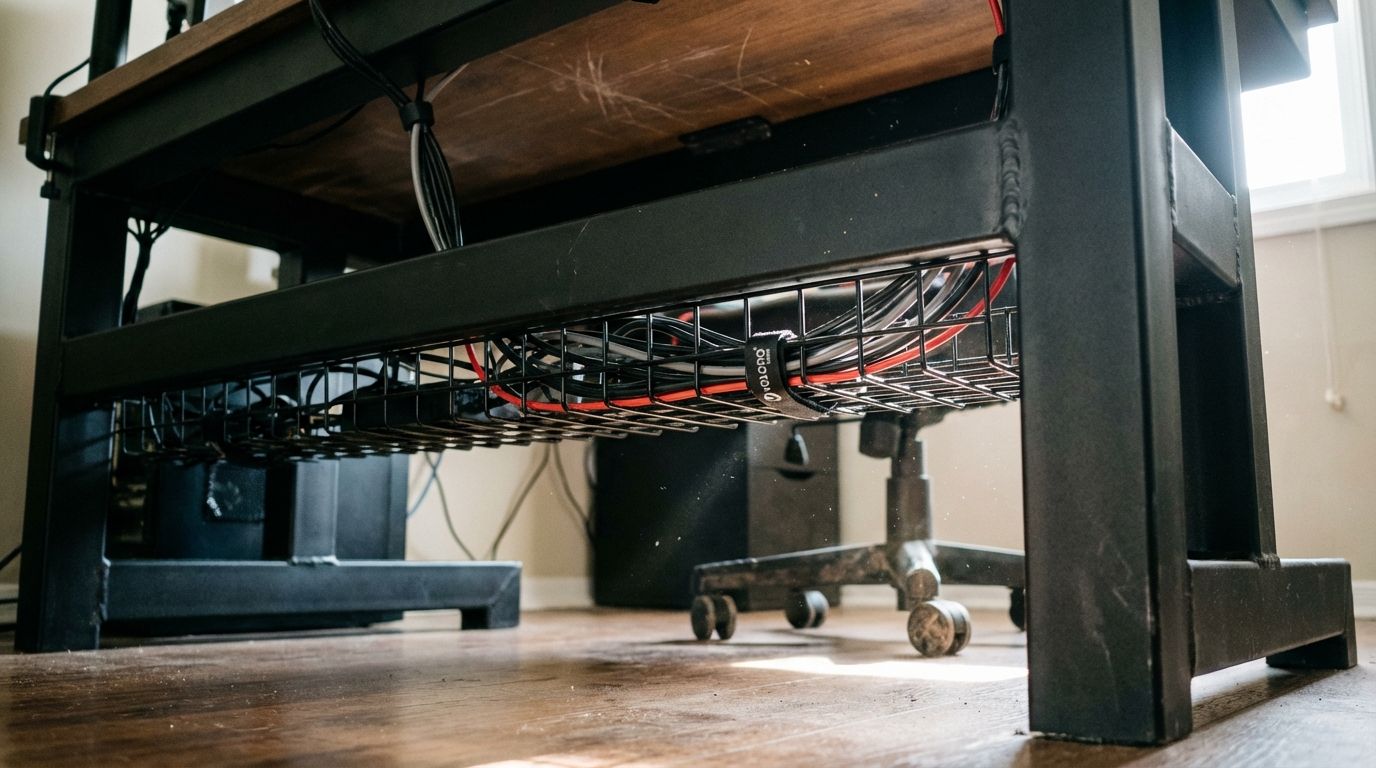
Look for built-in cable management like grommets or trays to tuck away wires. You want surfaces deep enough (24 to 30 inches) to distance your monitor properly from your eyes.
A sturdy frame with either steel legs or reinforced particleboard keeps wobble out of the picture. If you have measured your game nook down to the inch, check those specs again before clicking “Buy Now.”
Selecting Essential Peripherals
Picking the right gaming keyboard and mouse can feel like choosing your weapons for battle. Speed, comfort, and accuracy matter. Slide on a cozy headset and plug in that microphone; crisp sound can give you the edge when every click counts.
Should I choose a mechanical or membrane keyboard?
Mechanical keyboards outshine standard ones for gaming setups. They last longer, feel premium, and respond faster. Gamers who play for hours swear by models like the Wooting 80HE, which uses Hall Effect switches for rapid-trigger inputs.
Need quick moves in your favorite shooter? You’ll want those mechanical switches under your fingers. Feedback from each press is crisp. You know exactly when a command is sent.
“Nobody likes mushy keys during a clutch play,” as one Corsair K70 fan boasted on Reddit.
Different switch styles fit different hands. Choose “clicky” (Blue) for that classic tap sound, or “linear” (Red) if you prefer stealth mode while others sleep nearby. Anti-ghosting is a mandatory feature that lets you press several buttons at once without missing an input.
Membrane keyboards do run quieter and often cost less, but they simply don’t match up in serious play. Backlit keys and customizable RGB lighting bring extra style to your rig without breaking the bank.
What features make a gaming mouse precise and ergonomic?
Moving from picking your gaming keyboard, choosing the right gaming mouse can be a game-changer. Precision depends on dots per inch (DPI) and polling rate.
For shooters, many pros stick to 400 to 800 DPI for control, but if you run higher resolutions or use ultra-wide monitors, you might need over 3000 DPI. Look for a polling rate of at least 1000Hz (or even 4000Hz on new models like the Razer Viper V3 Pro) to keep cursor movement lag-free.
Ergonomics make long sessions easier on your hand. Grip style matters. Palm, claw, or fingertip shapes each suit different hands. Ultralight mice weighing under 60 grams are the current trend for reducing wrist fatigue.
Programmable buttons speed up actions in battle royales or MMOs without crowding your fingers. Good optical sensors nail down precise tracking even during quick sweeps.
I once spent hours swapping weights in my old Logitech G502 before realizing a lighter mouse actually improved my aim. It pays to test a few shapes if you can.
How do I find a headset with great audio and comfort?
A good gaming headset pulls double duty. It needs to sound crisp and sit easy on your head. Go for soft memory foam ear cushions and a padded headband. Those small details make hours feel like minutes.
Try it on before you buy if possible. Tight cups or too much pressure will ruin the mood faster than a buggy game patch. Popular wireless choices like the Audeze Maxwell offer audiophile-grade sound with massive battery life.
Noise cancellation helps block out distractions, so you catch every footstep in Call of Duty. Headsets with spatial audio create better immersion, making each explosion or whisper more lifelike.
Wired options usually deliver truer audio quality, while wireless ones give freedom to move around your setup. Built-in mics are handy for voice chats, but clear mic quality can be the difference between victory and chaos.
Stick to brands that fit your budget, but expect solid entry-level models at $50 and premium choices up to $300. From my own experience, nothing ruins a winning streak quicker than sore ears from cheap plastic headphones.
Why consider a standalone microphone for gaming communication?
After finding the right headset, sometimes you want your squad to hear you crisp and clear. Many gamers swap out built-in headset mics for a standalone microphone because the boost in audio clarity is like switching from analog TV to 4K.
Top models use cardioid pickup patterns to focus on your voice and ignore your clicking keyboard. USB microphones like the HyperX QuadCast S work great for beginners since they just plug into any computer.
If you love tweaking things, XLR options offer custom controls like adjustable gain. Proper mic positioning helps avoid annoying “popping” sounds. A cheap boom arm is the best accessory you can buy to keep the mic close to your mouth and off the desk.
There are solid choices on every budget. You can find basics for $40 or go for the Shure SM7B used by top streamers. Upgrading here turns group chats and Discord calls into smooth conversations rather than chaotic echoes.
When should I add external speakers for better sound?
A standalone microphone makes your voice clear, but what about the game’s roar? Sometimes headphones get uncomfortable after a long session.
That’s my cue to switch on my external speakers. Group matches are way more fun when everyone hears the same explosions. Simple soundbars like the Razer Leviathan V2 fit easily under a monitor.
Games feel richer with better audio gear. External speakers plug into your gaming PC through an external sound card or USB, giving bigger audio than most monitors can handle alone.
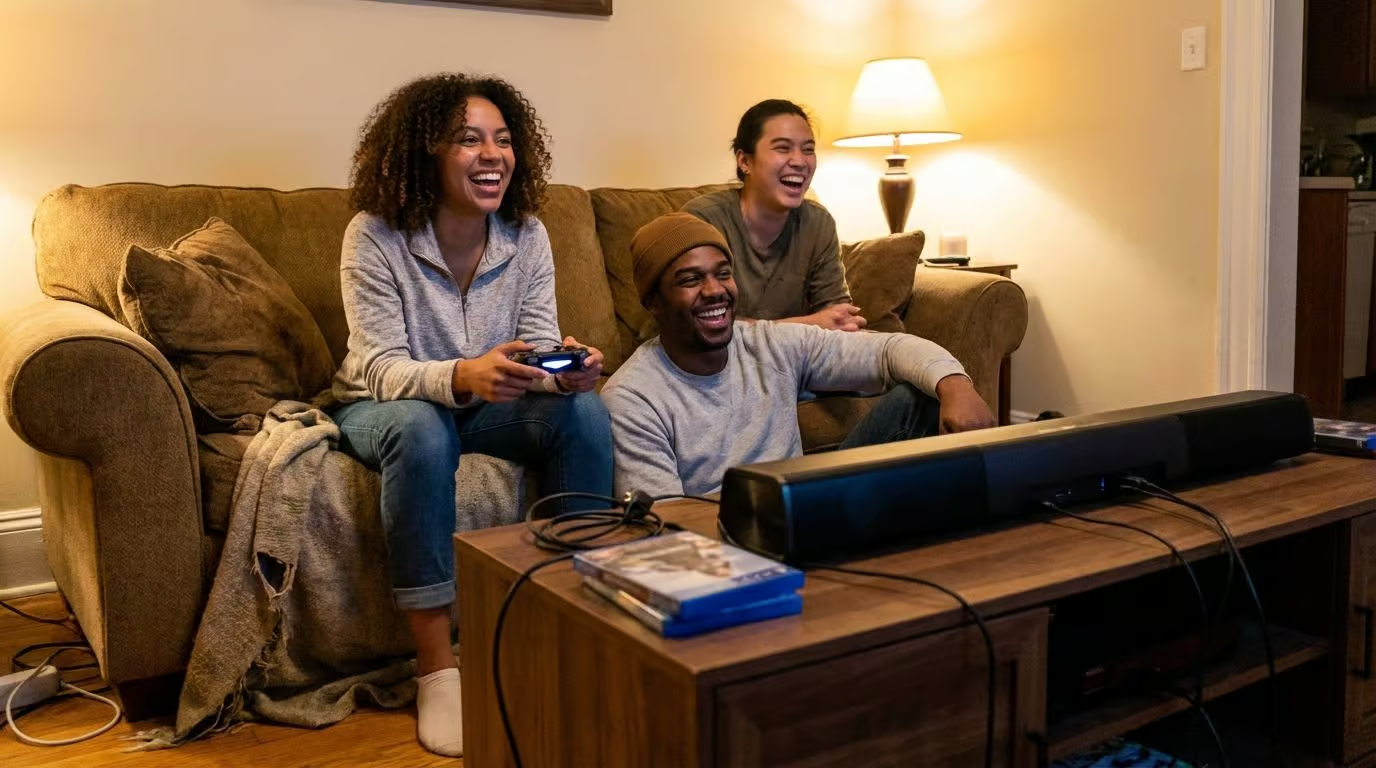
Hosting friends? External speakers let everyone join in without passing around headsets. If you care as much about deep rumbles and crisp voice chat as sharp graphics, adding quality speakers is never wasted effort.
Enhancing Aesthetics and Ambiance
RGB lights, LED strips, and cool gaming keyboards can turn a bland space into something wild. Tidy cables with Velcro straps make your setup look sharp without breaking the bank.
How can RGB lights or LED strips improve my setup?
RGB fans and LED strips boost the visual appeal of any gaming setup. Place LED strips along the back of your desk or monitor for a soft glow that frames your gear. This “bias lighting” actually reduces eye strain in dark rooms.
Smart lighting systems, like the Govee AI Sync Box, can read your screen content and mirror the colors on your wall in real-time. It creates an immersive atmosphere that spills out of the monitor.
Control software lets you customize colors and patterns with just a few clicks. Layering different light sources adds depth. Experiment with effects—breathe mode feels calming during late-night sessions, while reactive audio modes energize marathon matches.
Proper installation avoids annoying hotspots. Use diffusers if your LED strips are directly visible to keep the light soft and professional.
What are the best methods for effective cable management?
Messy cables ruin a cool look fast. Velcro cable ties are your best friend here. Unlike zip ties, they are reusable, which is a lifesaver when you swap out a mouse or move your PC.
Use cable raceways (plastic channels that stick to your desk) to hide thick bundles of power cords. A cable management net or tray mounted under the desk can hold your heavy power strips off the floor.
Label each cord—HDMI for the monitor, USB-C for the headset—to avoid headaches later. Keep power cords away from signal lines like ethernet cables so electromagnetic interference doesn’t affect your network speeds.
Routinely check behind your setup every few months. Dust builds up where cables hide. A quick pass with cable management tools boosts both looks and system stability. Nobody likes sudden shutdowns due to an accidental unplugged line!
How do I personalize my gaming setup with decor?
After you get your cords in line, your setup begs for some personality. Hang posters of games like Halo or God of War to set the mood. Neon LED signs are affordable now and change plain walls into a digital playground.
Shelves can carry action figures or collectibles. Try floating shelves above your gaming desk for both storage and display space. These work wonders in small spaces.
Swap old curtains out for blackout ones if sunlight spoils your screen time. Throw in artificial plants (like the classic IKEA Fejka) to add a touch of green without the upkeep.
Some guys go full theme: retro vibes with arcade art, or modern style using acoustic foam panels. These panels look cool and tame echoes during intense voice chats. Multifunctional furniture, like an ottoman with storage, keeps controllers close but off the floor.
Maximizing Comfort and Organization
Your desk setup should support your body and help keep gear neat. With some smart tweaks, like using a monitor arm or cooling fan, you find more space and comfort than ever before.
How do monitor arms improve comfort and desk space?
Monitor arms free up a ton of desk space by lifting your screens above the surface. This leaves extra room for your keyboard, snacks, or even that giant mousepad you picked up on sale.
With their clamp-on systems, they offer stable support for all sorts of displays. Brands like Ergotron or even the basic Amazon Basics arms are sturdy enough for most 27-inch screens.
Adjusting monitor height is quick and smooth with an arm. Get the screen right at eye level (the top third of the screen should align with your eyes). No more neck strain or hunching.
Plus, built-in cable guides keep wires tucked away. On height-adjustable desks, monitor arms keep your display aligned whether you’re sitting low or standing tall.
What cooling solutions help maintain optimal temperature?
Overheating can slow your gaming PC and affect performance. Air coolers use fans to push hot air away; they are simple and cheap. Liquid cooling (AIOs) offers better heat control and less noise, though it costs more.
Dust clogs vents fast. Regular cleaning keeps things running cooler. Laptops benefit from cooling pads that lift them up so more air gets in underneath.
Room fans or just cranking the AC can drop the temperature around your gear. Sometimes even a few degrees helps those CPUs breathe easier. Pick a cooling method based on your case size and how much noise you want to put up with.
How can shelves or cabinets organize gaming accessories?
Shelves give each gaming accessory its own spot. Your headset fits perfectly on a shelf with a mount, right next to your favorite controller. Cabinets help guard pricier gear like backup mice or lenses.
Stack up game cases and store extra cables neatly in bins. Keep those pesky wires under control by threading them through cable holes in your storage units. Open shelving lets you show off figures while tucking away charging docks.
Cabinets with doors lock away valuables and keep dust at bay. Quick access makes swapping out batteries for wireless controllers simple, so you spend less time searching and more time playing.
Testing and Optimizing Your Setup
Fire up your shiny gaming PC, plug in every DisplayPort cable, crank those settings, and watch for hiccups. Hungry for more frames? Let’s tune it up.
How do I assemble and connect all gaming components?
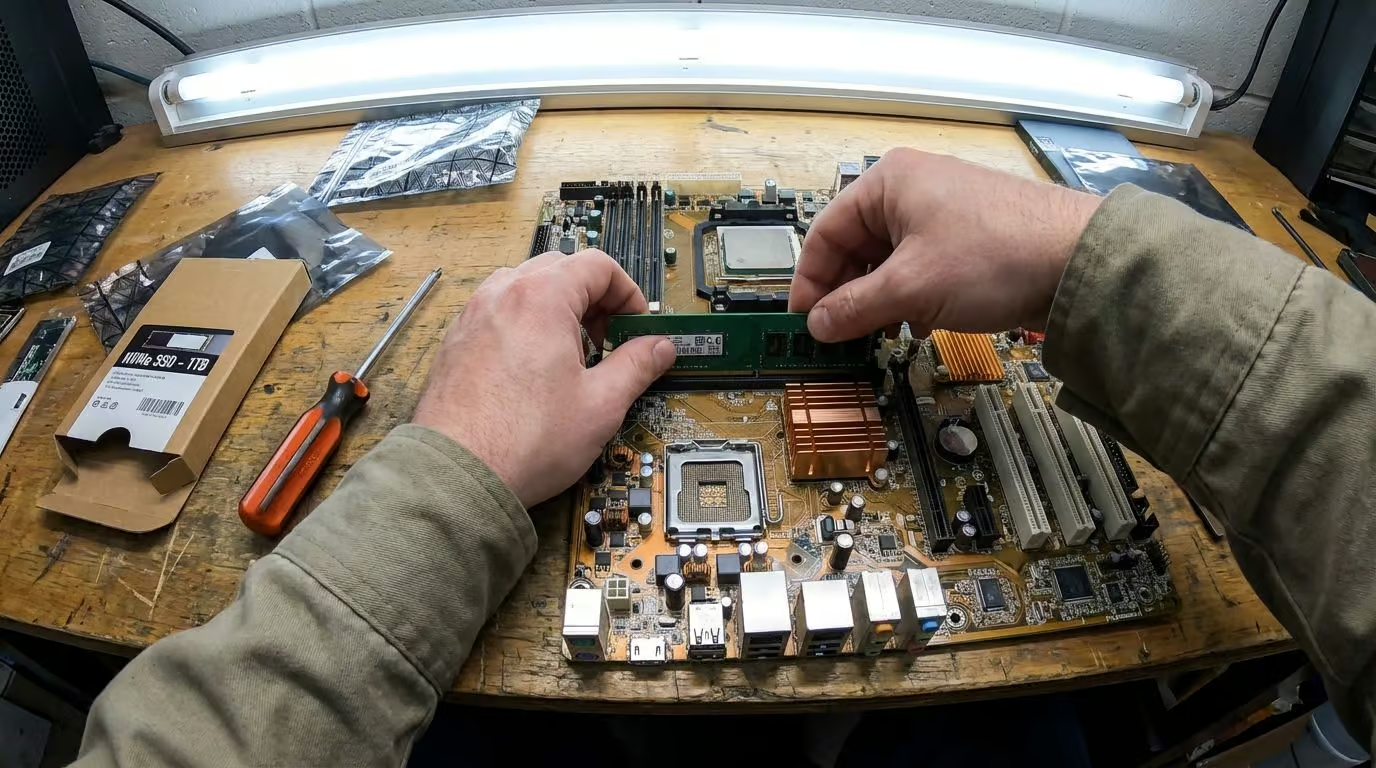
Lay out all your gaming components and grab tools like a Phillips #2 screwdriver and an anti-static wrist strap. Place parts in trays or on lit surfaces so nothing gets lost.
Start with the CPU on the motherboard. Slot it gently into place. Spread thermal paste if your cooler doesn’t have some pre-applied, then secure it tight onto the processor.
Snap RAM sticks into their slots until you hear a click. Slide storage devices—like NVMe SSDs—into m.2 slots. Connect cables from your power supply unit (PSU) to each device. Do not mix up those modular cables!
Before boxing everything inside that slick PC case, run a quick “POST test” outside the chassis. Connect the GPU to a monitor and power it on. If you see the BIOS screen, you are good to go.
Once confirmed, install everything neatly inside using Velcro ties for better cable management. Hook up your mechanical keyboard, mouse, and monitors. Fire up the system and get ready to install Windows.
What steps help test performance and optimize settings?
Fire up your gaming PC and run benchmarks like 3DMark or Cinebench. These stress tests push every chip to the limit to ensure stability. Update your graphics drivers via the NVIDIA App or AMD Adrenalin right away.
Head into your BIOS and enable XMP or EXPO profiles. This amps up your RAM speed to its advertised rate. Without this, your expensive memory will run at slow default speeds.
Monitor temps during heavy gaming with tools like HWMonitor or MSI Afterburner. No one wants a meltdown mid-match! Adjust the refresh rate in Windows display settings to match your monitor’s max capability.
Tweak in-game settings for that sweet spot. Lowering shadows or water quality can often double your FPS without ruining the visuals.
How can I adjust ergonomics for long gaming sessions?
Sit in a gaming chair with lumbar support. Tweak seat settings until your feet rest flat on the floor. If they dangle, use a footrest.
Place your monitor about 20 to 30 inches from your eyes. Set the top of the screen just at or slightly below eye level. This keeps neck pain at bay after hours of play.
Slide your keyboard to elbow height and keep your mouse nearby to avoid wrist strain. A solid wrist rest under each hand makes marathon sessions feel like sprints. Good lighting is crucial—soft, adjustable bulbs stop squinting and help cut eye fatigue.
Take breaks every 60 minutes. Your body will thank you later.
Maintaining Your Gaming Setup
Keep your gaming space fresh by wiping down screens, keyboards, and mice every week. Schedule time to swap out dust filters in your PC so clutter never gets the upper hand.
What is the best way to clean and prevent dust buildup?
Dust sits on your gaming PC like an unwanted guest. Once a month, grab an electric duster (like a DataVac) and shoot air into the fans and vents. It is safer and more powerful than those disposable cans of compressed air.
For surfaces, use a dry microfiber cloth. Avoid paper towels, which can scratch glossy plastics. Keep sunlight off your setup to lower heat risk and prevent plastics from yellowing.
You’ll notice smoother airflow in your setup right away after blowing out the filters. That means less overheating as you render intense graphics.
How often should I update software and drivers?
Run Windows updates every week. These patches fix security holes that hackers love to exploit. Update your graphics drivers once a month for better game performance, especially when big new games like Grand Theft Auto VI are on the horizon.
Monthly disk cleanup stops clutter in its tracks and helps manage storage. Peripheral firmware deserves attention too. Update your mouse and keyboard software to fix bugs.
New drivers also support fresh features in popular titles while keeping you covered against malware threats lurking online.
How do I keep cables and accessories organized regularly?
Corral your cables with Velcro ties before tucking them into cable sleeves. Lay out your wire pathways ahead of time. Unplug and group similar cords for each device to avoid tangling.
Surge protectors do double duty. They keep everything powered up and contain a loose power strip mess in one place. Mount them under the desk to keep the floor clear.
Get creative. Use tape to color code cables or mark charger types. For quick-grab accessories, stick cable clips on the edge of your desk so nothing slides off.
Always buy wires a little longer than you need. About 8 inches of slack prevents tension on your ports. Review the setup every few weeks and adjust where needed.
How Will Gaming Setups Evolve in 2026?
The future is getting smarter. AI integration is about to take center stage, syncing your lighting with your in-game health bar or ammo count automatically.
AI won’t just run the NPCs; it will automate room temperature and adjust fan speeds for cooling based on how hard your PC is working. Expect modular furniture that snaps together fast to fit any room size.
Tangled cords might finally disappear as wireless power standards mature, allowing mice and keyboards to charge just by sitting on your desk mat.
Gaming PCs will grow smaller but pack more power by 2026 thanks to new Small Form Factor (SFF) cases and efficient PSUs. Monitors with 500Hz+ refresh rates will support instant response times for esports pros.
Ergonomics will step up too, as companies focus on wellness features like active seating that encourages micro-movements while you play.
People Also Ask
What do I need for a basic gaming setup at home?
Start with a gaming pc that handles 1440p resolution and pair it with a 144Hz monitor for the smoothest visuals. You’ll also want a mechanical keyboard and a lightweight mouse, but don’t overlook a quality ergonomic chair to keep you comfortable during long sessions.
How do I pick the right gaming keyboard and mouse?
Look for a keyboard with linear or magnetic switches since they offer the fastest response times for gaming. For your mouse, grab a lightweight model with a high polling rate, and don’t worry about cables because modern wireless tech is just as fast as wired.
Is building a small form factor (sff) pc worth it for my setup?
If you’re short on space but still want top-tier performance, a small form factor (sff) build is the perfect solution because it fits powerful hardware into a compact footprint.
Can I upgrade my current pc gaming setup instead of starting from scratch?
Absolutely, dropping in a new NVMe SSD or upgrading to 32GB of RAM can make an older machine feel brand new. Sometimes just refreshing your peripherals, like getting a new mousepad or headset, gives you a performance boost without the cost of a full rebuild.