
Back in February 2025, I published a 50-tip roundup of iPhone secrets and hacks here, then spent the next year re-testing the whole list across iOS updates through April 2026. Most of those “secrets” turned out to be normal features Apple simply never bothered to advertise, while a handful were one-time party tricks I forgot about by Tuesday.
What surprised me most was where the real power tools actually live. Almost every genuinely hidden feature that survived daily use sits buried inside Settings > Accessibility, built for one specific audience and quietly adopted by everyone else. This is the filtered version of that list, separating the shortcuts worth building into muscle memory from the gimmicks you can leave alone.
Key Takeaways
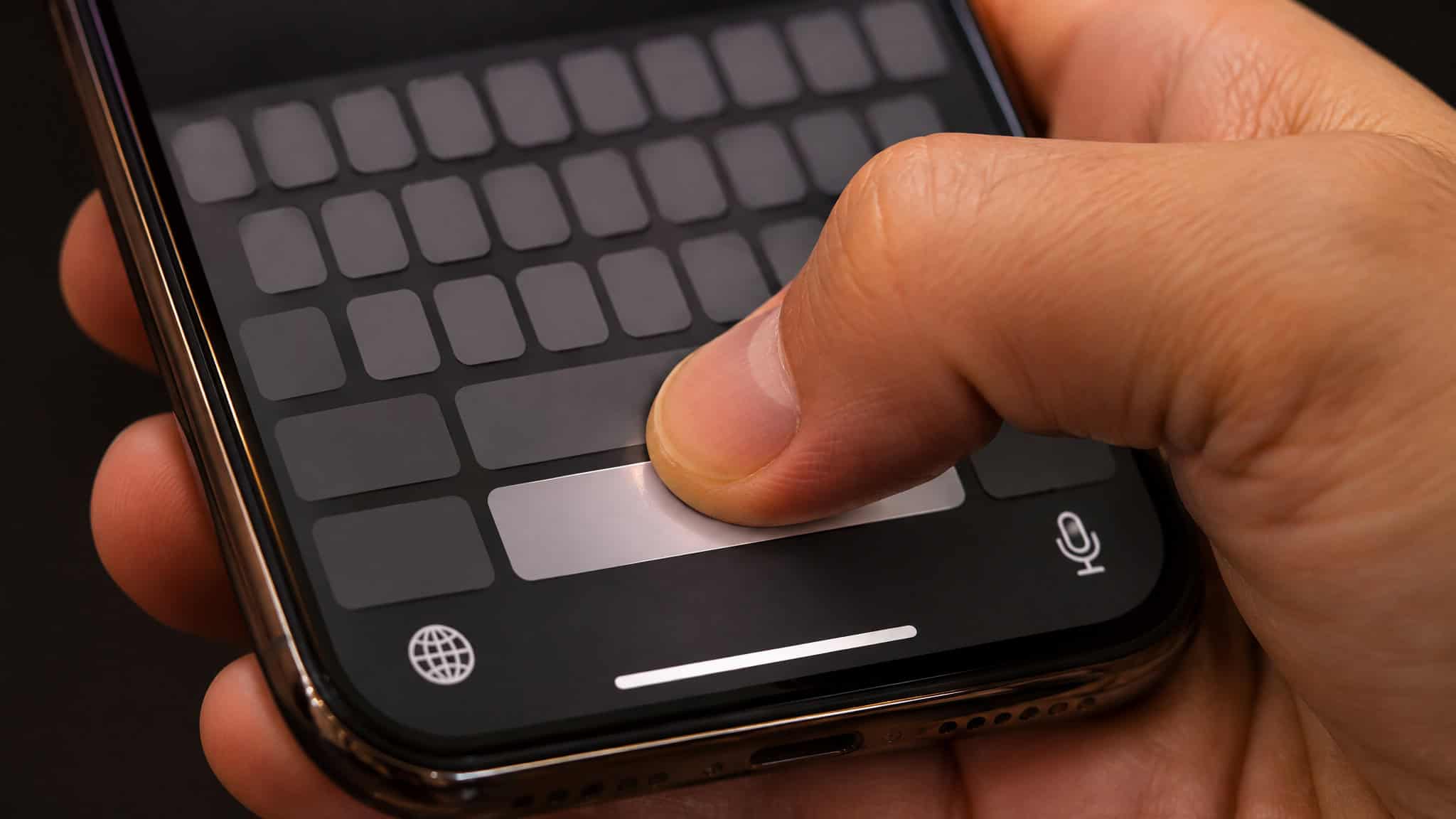
Press and hold the space bar to turn the iPhone keyboard into a precision trackpad, then tap with a second finger to select words or paragraphs without losing your cursor.
Settings > Accessibility holds the strongest daily-use tools on the phone, including Reduce White Point for an ultra-dark screen, Background Sounds for built-in white noise, and Back Tap shortcuts.
Texting “Pew Pew” between iPhones fires a lasers screen effect, while holding down the send arrow opens the full menu of bubble and screen effects without memorizing trigger words.
Table of contents
Table of Contents
iPhone keyboard tricks: trackpad, Caps Lock, swipe typing
Press and hold the space bar and the keyboard turns into a trackpad. Once the keys go blank, you can slide a finger anywhere on the pad to place the cursor between individual letters. To highlight text without lifting your thumb, tap the trackpad with a second finger and keep sliding, or use two fingers to adjust the selection range. Double-tapping with that second finger grabs a whole word, triple-tapping grabs a paragraph, and lifting your finger exits trackpad mode with the cursor parked right where you left it.
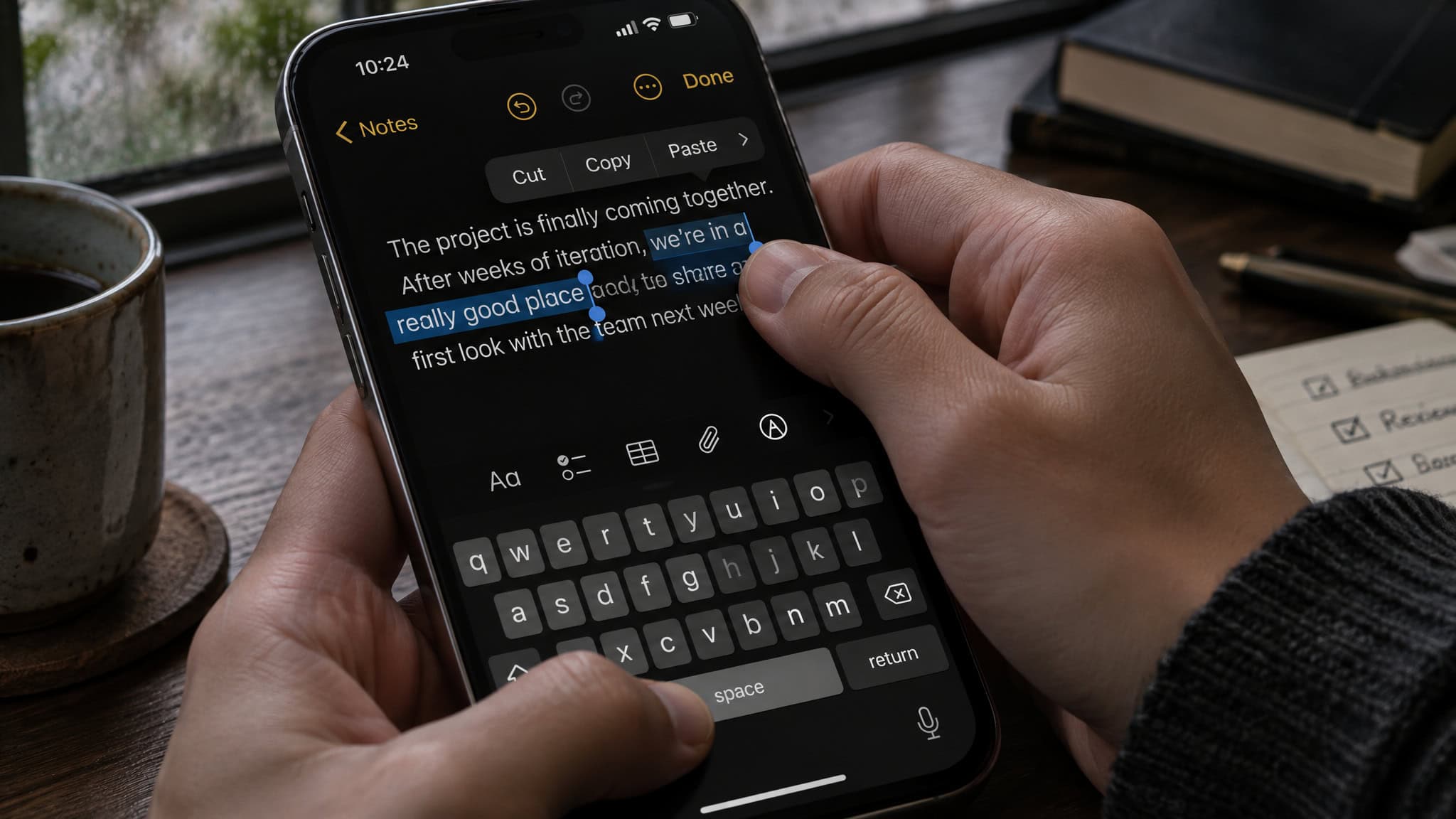
First-time users almost always trigger trackpad mode by accident, over-slide past the typo they wanted to fix, and lose their place entirely. That exact over-sliding friction made me ignore the feature for months until I started using the second-finger tap-to-select gesture. Instead of hunting for the tiny blue selection handles on a five-word mistake, you hold the space bar, slide to the start of the phrase, tap with your other thumb, and drag across the exact words you want to cut.
Turn the keyboard into a trackpad
Tap the screen with three fingers to undo your last edit without reaching for the back arrow. Swiping with three fingers redoes it, and pinching inward with three fingers copies selected text so you can spread three fingers outward to paste it somewhere else. It looks slightly ridiculous on a train, so I still stick to long-pressing for copy and paste in public, but the three-finger undo tap saves me constantly when I accidentally delete a whole paragraph.
Hidden Caps Lock: double-tap Shift
Double-tapping the Shift key locks your keyboard into all caps, confirmed by a small horizontal line under the Shift arrow. Tap Shift once more to drop back to lowercase. It works in every text field on the phone, which makes it far less annoying than holding Shift letter by letter when you’re typing acronyms, serial numbers, or stubborn web forms.
Text Replacement and QuickPath
If you type your email address or phone number ten times a day, Text Replacement is worth five minutes of setup. Open Settings > General > Keyboard > Text Replacement, tap the plus icon, type the full phrase, and assign a short trigger like “@@” for your email address. Whenever you type that shortcut in any app, the full text pops up ready to expand, which works just as well for street addresses, canned replies, and favorite emoji.
QuickPath swipe typing sits one menu back under Settings > General > Keyboard. Once it’s on, you slide your finger from letter to letter and lift at the end. The keyboard fills in the word, and you can tap space or keep swiping the next one. It shines when you’re walking with coffee in your other hand, though longer technical words still trip it up.
Scan text with the autofill camera
When you need to get a Wi-Fi code, tracking number, or street address off a piece of paper, you don’t have to type it manually. Tap and hold inside any text entry box, pick “autofill” from the pop-up menu, and point the camera viewfinder at the printed text. Your iPhone reads the characters live and lets you tap them straight into the field.
iPhone camera tricks: stills during video and exposure lock
The iPhone can capture photos while recording video using the white shutter button on screen. While rolling video on either the front or rear camera, tapping that white circle drops a still frame directly into your Camera Roll without interrupting the clip. For regular single-handed photos, pressing either the volume up or volume down button acts as a physical shutter release, and holding volume up on newer iPhones fires burst mode to catch fast-moving subjects.
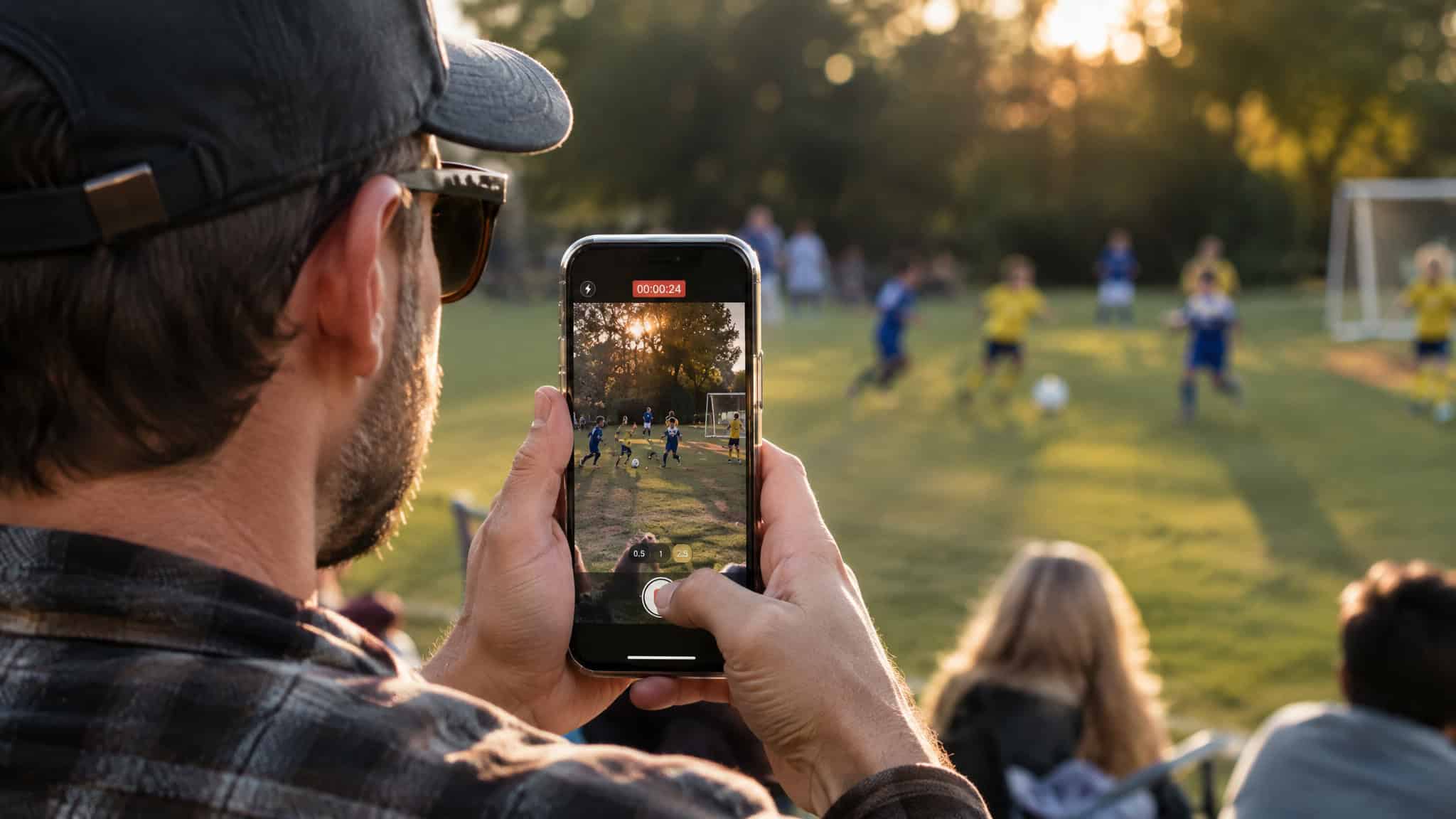
The catch with video stills is image quality. Because the sensor is configured for video rather than a full-resolution photograph, those captured frames come out softer and lower quality than a normal shot. That tradeoff makes the white shutter button worthwhile at concerts, kids’ games, or family dinners when you don’t want to stop recording, and a poor choice for anything you plan to crop tightly or print. Volume-button shooting has no quality penalty at all, which makes it my default move when shooting one-handed, taking steady selfies, wearing gloves, or shooting underwater.
Take photos while recording video
Keep your thumb near that white shutter button anytime a moment is moving too fast to switch camera modes. You get the continuous video clip and a usable still frame saved side by side.
Volume buttons as shutter and burst mode
Using the volume keys eliminates the awkward screen tap that shakes the phone right as you shoot. On newer iPhones, holding volume up captures a rapid burst so you can pick the sharpest frame after the action passes.
AE/AF Lock and Preserve Settings
In tricky lighting, tap and hold your subject on screen until the yellow “AE/AF Lock” banner appears, then slide the little sun icon up or down to dial in brightness. On iPhone 11 and later, turning on Preserve Settings in Camera settings keeps that custom exposure locked between sessions instead of resetting every time you pocket the phone. When you want automatic metering back, a single tap anywhere on the screen clears the lock.
Mirror Front Camera selfies
If you use an iPhone XS or newer running iOS 14 or later, you can stop the front camera from flipping your face backward after you hit the shutter. Tap the arrow at the top of the Camera screen and tap the mirror icon so your saved selfie matches what you saw in the preview. Toggle it back off whenever you want the standard orientation, though most people prefer the mirrored view for group shots and quick appearance checks.
Copy and paste photo edits
Editing twenty photos from the same afternoon one by one is wasted time. Open a photo you already tweaked, tap Edit, tap the … button, and choose Copy Edits, then open another shot from the same spot and hit Edit, …, and Paste Edits. Your edits transfer right away and sync through iCloud Photos, and you can always hit Revert to undo them.
Lens Cleaning Hints
Smudged glass ruins more phone photos than bad lighting. Under Settings > Camera, toggle on Lens Cleaning Hints and your iPhone will pop up a reminder when you open the Camera app if it detects dust or fingerprints across the lens.
Photos that see: search, identify, and lift subjects
Apple’s on-device visual intelligence turns your camera roll from a dumb folder of JPEGs into a searchable database and real-time lookup tool. Most of it runs automatically in the background without requiring a third-party app.
Search your photo library by content
Open Photos and type a plain phrase like “cat,” “green car,” or “passport” into the search bar. It isn’t flawless, and it occasionally misses weird angles, but typing “passport” when you’re standing at an airline counter pulls up the exact photo you need in two seconds.
Identify plants, animals, and laundry icons
Take a photo of an unfamiliar plant, bug, or dog, then tap the Info button at bottom center. When your iPhone recognizes the species, a small starred symbol appears next to the metadata with a lookup card telling you what you’re looking at. The same trick works on confusing clothing tags: snap a laundry-care label, tap Info or the sparkling washing-machine icon, and select Look Up Laundry Care to translate every cryptic symbol.
Lift subjects and remove backgrounds
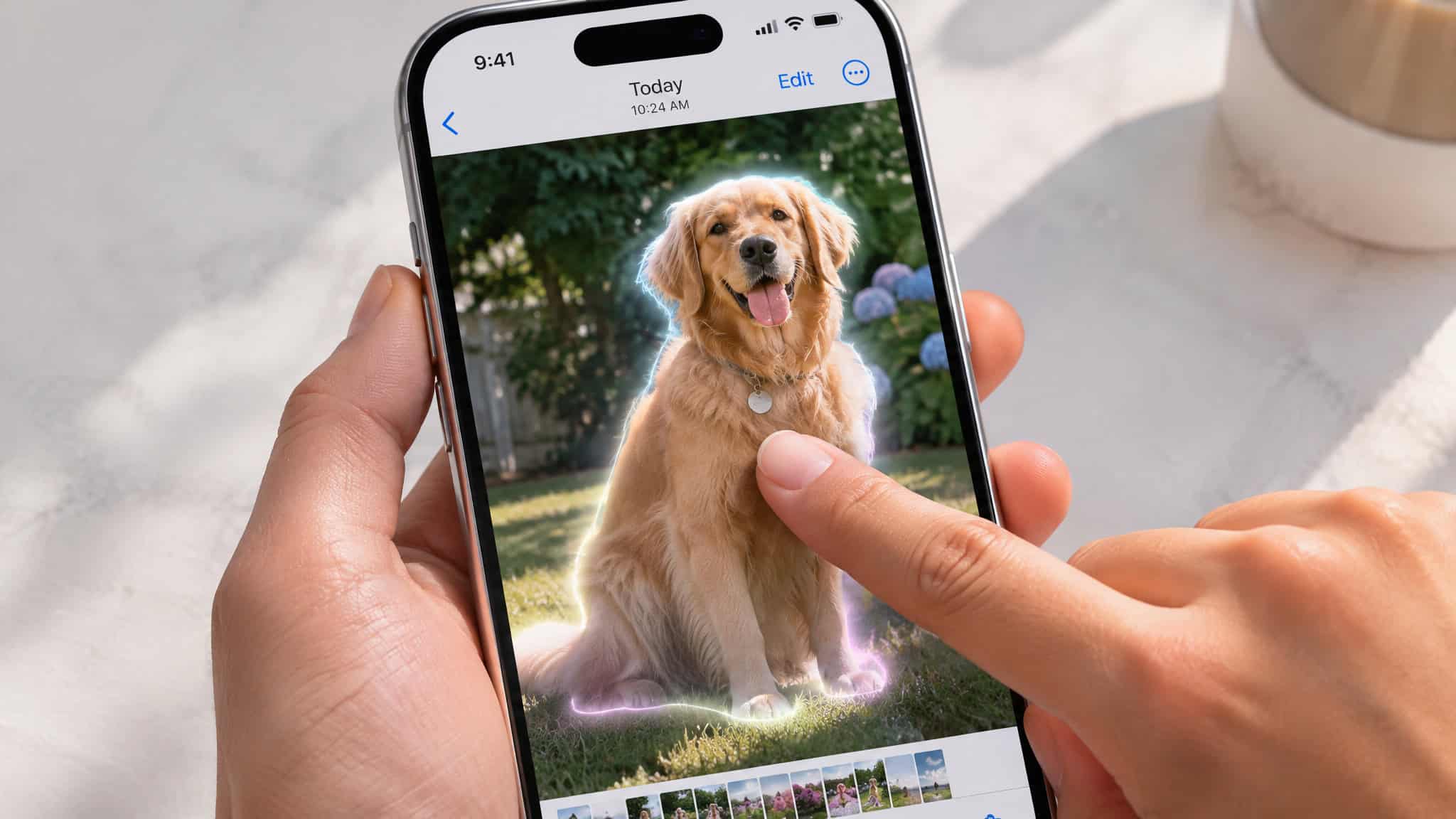
To grab a subject out of a photo, press and hold directly on the person, pet, or object until a glow ripples around the outline, then drag or copy it into a message. You can also highlight and copy printed text straight out of any saved picture. For batch work, open the Files app, tap and hold one or several images, and pick Quick Actions > Remove Background to generate clean, background-free duplicates.
Live Text: copy and translate printed text
At an unmanned Latvian train station, I pointed the Translate app camera at a posted sign for a live on-screen translation explaining that the building was open and where to wait on the platform: no typing required. Even in the regular Camera app, aiming at printed text brings up a small three-lines icon at the bottom right that lets you copy, select all, look up, translate, or share the words on sight.
Hidden utility tools: Measure, Calculator, and PDF tricks
Apple’s default utility apps hide a few visual tells that quietly replace a handful of single-purpose App Store downloads. Once you know what to look for, they take two seconds to verify.
Measure app as a spirit level
Open the Measure app in your Utilities folder and lay the phone flat against a shelf, picture frame, or tabletop. It acts as a tape measure and spirit level in portrait or landscape, and the whole screen turns bright green the second the surface is dead level. Tap the screen to lock a reading and share it by text or email.
Calculator: swipe to delete digits
If you mistype one digit at the end of a long number in Calculator, stop hitting clear and starting over. Swipe left or right across the number display to erase the last digit, repeating as needed to walk back multiple entries. You can also tap and hold the display to copy or paste, double-tap to select the entire result, or rotate the phone to landscape for the scientific calculator.
Calculator’s hidden unit converter
Hold down the top-right button inside the Calculator app and select “convert” to turn the keypad into a live unit converter. It handles weight, temperature, time, and currencies like euros and USD, letting you tap the unit label to switch types and tap that same top-right button to return to standard math.
Print to PDF without a printer
Apple still hides one of its best document tricks inside the print menu. In any share sheet, tap Print even when no printer is nearby to generate a clean PDF version of the page or document. On cluttered recipe blogs, hit the “jump to recipe” button first and then run the print trick so your saved PDF only holds the ingredients and steps instead of the author’s backstory.
Markup any webpage as a PDF
When you want to circle or highlight something on a site, tap Share in Safari and choose Markup to convert the whole webpage into an annotatable PDF. Use two fingers to press and swipe up when you need to scroll without accidentally drawing lines, drop in shapes or notes, and save the finished file straight to Files.
Accessibility: where iPhone hides its best features
The most genuinely hidden iPhone features live in Settings > Accessibility, including Reduce White Point, Background Sounds, and Back Tap, and pairing that menu with built-in shortcuts like the Measure level and Calculator swipe-delete covers the best daily-use tricks. Apple designed these tools for users with specific vision, hearing, or motor needs, which is why most iPhone owners never open the menu. Once you start poking around in there, half the third-party utility apps on your phone become redundant.

Reduce White Point: ultra dark mode
Standard brightness sliders still feel like a flashlight in a pitch-black bedroom. Head to Settings > Accessibility > Display & Text Size and turn on Reduce White Point to drop the screen into an ultra-dark mode that won’t wake a sleeping baby. Map it under Settings > Accessibility > Accessibility Shortcut > Reduce White Point so a quick triple-press of the power button toggles it on and off.
Background Sounds: a hidden white noise machine
Under Settings > Accessibility > Audio/Visual > Background Sounds, Apple hides a built-in sound machine with Balanced, Bright, and Dark noise plus Ocean, Rain, and Stream tracks. Paired with AirPods noise cancellation, it blocks out chaotic offices or hotel hallways, and testers at Wirecutter noted the tracks work well for soothing babies and adults alike.
Back Tap: actions behind double- and triple-taps
Settings > Accessibility > Touch > Back Tap turns the Apple logo on the back of your phone into a customizable button. You can assign one action to a double-tap and another to a triple-tap, such as snapping a screenshot, launching the camera, muting the ringer, or toggling the flashlight.
Guided Access: one-app lock for toddlers
Handing an unlocked phone to a kid usually ends with twenty blurry photos and three mystery app downloads. Turn on Guided Access under Settings > Accessibility > Guided Access to lock the screen to a single app so they can’t exit, change settings, or open anything else. Just remember to turn it off when you get the phone back.
Vehicle Motion Cues for motion sickness
Reading in the passenger seat doesn’t have to wreck your stomach. Under Accessibility > Motion, set Vehicle Motion Cues to “automatic” so small black dots appear along the edges of your screen and move in sync with the car. You can adjust the dot size, color, and count, and while it isn’t foolproof, it takes the edge off car sickness.
Live Listen: AirPods as a remote microphone
With AirPods in your ears, turning on Live Listen turns your iPhone into a remote microphone you can leave in another room. People use it to hear a baby cry from across the house, catch the doorbell while cooking, or listen for a sensor-mat beeper outside an elderly relative’s bedroom.
Voice Control custom gestures
If you repeat the same multi-tap screen routine every day, Voice Control can automate it. Go to Settings > Accessibility > Voice Control, turn it on, and follow Commands > Custom > Create New Command > Action > Run Custom Gesture to draw the exact taps and swipes you want replayed on command. Turn Voice Control off when you’re done, because it responds to anyone within earshot who speaks your trigger phrase.
iPhone security tricks: app locks and screenshot safety
Most iPhone privacy mistakes happen when you hand your unlocked phone to someone else or send a screenshot you didn’t redact properly. A few built-in locks close those gaps without adding friction to your day.
Hide screenshot info with shapes, not pen strokes
Never black out an address, account number, or name on a screenshot using the Markup drawing pen. Even heavy black pen strokes leave faint transparency data behind, and anyone who saves the image and cranks up brightness and contrast can read what’s underneath. Tap the plus button in Markup, choose Add Shape, and drop a solid opaque rectangle over the sensitive text so it can’t be edited back out.
Require Face ID per app and lock private Safari tabs
Long-press any app icon on your home screen and select Require Face ID to lock it individually, which keeps kids or borrowers out of your email and banking apps even when the phone is unlocked. Inside Safari, you can also move the address bar, set website-specific permissions, and lock your private browsing tabs behind Face ID so nobody stumbles into them later.
Second passcode, hidden apps, and Control Center lock
For tighter physical security, you can layer in a second passcode, hide sensitive apps from the home screen, and block Control Center access while the phone is locked. Flip that last one on, and nobody who grabs your locked phone can swipe down to turn on Airplane Mode.
Share Wi-Fi passwords via QR code
Sharing Wi-Fi with another iPhone user takes one tap: stand close while they pick your network in Settings > Wi-Fi, then tap Share Password on the pop-up that appears on your screen. When Android users or a whole group need the password, open the Passwords app, tap Wi-Fi, select your network, and tap Show Network QR Code so everyone can scan and join.
You may also see dialer codes floating around online as supposed security checks, including *3001#12345#*. Dialing *3001#12345#* opens Field Test mode, a carrier-signal diagnostic screen whose layout has shifted across iOS versions. Dialer codes are network diagnostic checks, not reliable spyware scanners, and no keypad code can guarantee your phone is free of spyware.
AI apps for iPhone: which earn a home-screen slot
Snapseed is the best free pick for removing objects, Facetune for portraits, and Lightroom for fine control. That rule of thumb solves the biggest problem with AI apps on iPhone: keeping eight overlapping editors or writing tools on your home screen when one clear winner per job does the work.
Everyday AI assistants like ChatGPT are worth keeping on your phone as long as you treat them as a drafting and brainstorming partner rather than autopilot. ChatGPT handles quick explanations, math, story ideas, and rough drafts well when you give it clear, specific prompts and refine the thread over a couple of follow-ups, though vague one-line requests still produce generic filler.
ChatGPT for questions, drafting, and brainstorming
Keep ChatGPT in your dock if you regularly need to outline an email, break down a dense topic, or kick around ideas on the move. Be specific about what you want, push back when the first answer misses, and use it to get past a blank page rather than expecting finished work on the first try.
Photo editors: Snapseed vs Facetune vs Lightroom
Pick your photo editor by the job you actually do:
- Snapseed handles free, pro-level tweaks and includes a Healing tool that cleanly erases stray objects and blemishes.
- Facetune focuses on portrait touch-ups like teeth whitening, skin smoothing, and subtle reshaping.
- Lightroom Mobile gives you Adobe’s fine-tuning sliders for serious color and exposure control.
- Prisma turns photos into Van Gogh or Picasso-style art filters, Enlight handles double exposures and surreal blending, and VSCO sticks to film-like filters and color grading.
Writing assistants by job
For clean everyday typing, Grammarly catches spelling and grammar mistakes live as you write, while ProWritingAid digs deeper into style suggestions. Hemingway Editor trims dense, tangled sentences down to plain English, Quillbot rephrases existing paragraphs, Copy.ai focuses on marketing copy and social posts, and ChatGPT covers rough first drafts.
Voice and translation apps by job
Google Translate and iTranslate both handle instant voice translation across more than 100 languages, with iTranslate offering offline packs when you don’t have signal, and Microsoft Translator built for live two-way conversations. For pure voice-to-text, Otter transcribes meetings and notes in real time, Dragon Anywhere dictates full documents and emails, and Siri Shortcuts ties custom voice commands to your own iPhone routines.
iMessage effects: Pew Pew, secret words, polls, and stickers
Texting “Pew Pew” between iPhones triggers a lasers screen effect in the conversation. Those trigger phrases run on the same Messages animation system as the hidden effects menu, so you don’t have to memorize any magic words. Typing any message and pressing and holding the blue send arrow opens the full browser of bubble and screen effects, letting you preview every animation before it fires and letting the recipient see and reply to the effect on their end.
Pew Pew and the send-arrow effects browser
When you send “Pew Pew” to another iPhone, the conversation lights up with lasers automatically. For any other message, type your text, press and hold the send arrow, and pick from the screen and bubble animations waiting inside. You can also highlight specific typed words in the compose box, tap Effects, and attach animations directly to that text.
Polls in group chats
Group threads fall apart the second four people try to pick a dinner spot. Tap the plus sign next to the text field in Messages, choose Polls, type your question with up to 12 options, and drop it into the chat so everyone can tap a choice and vote cleanly.
Send Later: schedule texts
Writing a text at midnight doesn’t mean you have to wake someone up with it. Type your message, tap the plus icon on the left side of the field, select Send Later, and pick the day and time you want it delivered so it lands during normal hours.
Stickers from photos
You can turn almost any subject in your camera roll into a custom sticker. Long-press a person, dog, or object in Photos, tap Add Sticker, and dress it up with Outline, Comic, or Puffy filters, or pull animated stickers straight from Live Photos. Everything you save shows up in your keyboard app drawer inside Messages, Notes, and any other app that uses the keyboard.
Home screen tricks: full-page widgets and status bar emoji
Full-page home screen widgets are a newest-iOS feature that takes over an entire home screen page. On iOS 27, those oversized widgets sit alongside universal iPhone gestures that work on older phones too, so knowing which tricks depend on the latest software saves you from hunting through menus you don’t have.
Full-page widgets on the newest iOS
On iOS 27, full-page widgets let you dedicate an entire screen to a single interactive dashboard, such as a folder navigator, a media player, or a calendar showing year progress, daily events, sunrise and sunset times, and the forecast. Better yet, you can stack multiple full-page widgets together and swipe vertically between them.
Status bar emoji via wallpaper Markup
Focus modes only give you a handful of tiny status-bar icons, but wallpaper Markup lets you put any emoji or short text up there. Edit your wallpaper, tap the three dots, open Markup, add a text box resized around 22, drag it into the status bar zone, and save.
Move icons across pages with a second finger
Dragging an app icon to the edge of the screen and waiting for the page to auto-scroll is agonizing. Tap and hold the icon with one finger, then swipe across your home screen pages with a second finger, it works one-handed or with two.
Press-and-hold any QR code
You don’t need a second phone to scan a QR code sitting in a screenshot or on a webpage. Press and hold any QR code anywhere in iOS and a menu pops up letting you open it in Safari, add it to Reading List, copy the link, or share it.
Hardware tricks: metal detection, hotspot, emergency calls
Beyond apps and menus, your iPhone carries physical sensors and backup radios that work well in a pinch as long as you don’t expect them to replace dedicated hardware.
The magnetometer as a crude metal detector
Your iPhone’s magnetometer sensor normally tells Maps and Compass which way is north, which means metal-detector apps can read its magnetic field spikes to flag buried metal. One Reddit user even tracked down a buried pipe cleanout under concrete right where the app pointed.
Personal Hotspot: Wi-Fi in a pinch
Flipping on Personal Hotspot in Settings turns your cellular plan into a temporary Wi-Fi network for a laptop when hotel Wi-Fi dies. It gets the job done on the road, though it isn’t a replacement for dedicated router hardware.
The Remote app for lost TV remotes
When the Fire Stick or living-room remote vanishes into the couch, the default Remote app or provider-specific TV apps let you control playback and menus straight from your phone.
Emergency call from a powered-off phone
If your phone is completely powered off in a real crisis, pressing the power button several times connects directly to emergency services without waiting for a full boot. Save this strictly for genuine emergencies.
You’ll also hear people swear by the 40-80 battery charging rule, which tries to avoid deep drains and long 100% overnight holds. In practice, almost everyone who charges overnight gives up manual 40-80 policing within a couple of weeks and lets Apple’s built-in Optimized Battery Charging handle it instead.
Call and time tricks: recording, Hold Assist, snooze
Apple finally built native tools for the phone annoyances that used to require paid third-party apps or constant workarounds. If phone-tag and hold queues eat up your week, turn on call recording and Hold Assist first.
Native call recording
During a live call in the Phone app, tap More > Start Call Recording to save the conversation without paying for a third-party recorder app. An automated voice tells both sides the call’s being recorded. Hit the red Stop button or hang up whenever you want to end it.
Hold Assist: skip the hold music
Enable Hold Assist Detection under Settings > Apps > Phone, then tap More > Hold Assist whenever a company puts you on hold. Your iPhone stays in the queue for you and calls you back the moment a live agent picks up.
Adjustable snooze duration
Apple finally retired the mandatory nine-minute snooze. Open the Clock app, tap an alarm, and pick Snooze Duration, you can set it anywhere from 1 to 15 minutes.
Siri reads Safari pages aloud
When you’d rather listen to a long article on a drive or walk, open it in Safari and tell Siri “read this” or “I want to listen to this page,” or tap the Page Settings button left of the address bar and hit Listen to Page. You can pause anytime and adjust the speaking speed.
App Limits for screen time
Go to Settings > Screen Time > App Limits > Add Limit to cap entire categories like Social or single time-sink apps. Tap Customize Days inside the setup if you want stricter weekday caps and a little extra breathing room on weekends.
Frequently Asked Questions
What are some unique features of iPhones?
Some of the best under-the-radar iPhone tools live inside Settings > Accessibility, including Reduce White Point for an ultra-dark screen, built-in Background Sounds for white noise, and Back Tap shortcuts on the Apple logo. Beyond that menu, you can turn the Measure app into a bright-green spirit level, swipe across the Calculator display to delete single digits, or convert any webpage into a PDF through the Print menu. On the newest software, iOS 27 even adds stackable full-page home screen widgets alongside native call recording and Hold Assist.
What does *3001 12345 *# do in an iPhone?
Dialing *3001#12345#* launches Field Test mode, a built-in diagnostic screen that displays carrier-signal data. Its exact layout has changed across different iOS versions, so what you see depends on your software. People often share it online as a security trick, but it is strictly a network diagnostic tool rather than a privacy or spyware check.
What is the 40-80 rule on iPhones?
The 40-80 rule is a manual charging habit aimed at protecting your battery by avoiding deep discharges and long stretches sitting at 100% overnight. While it sounds smart on paper, almost everyone who plugs their phone in at bedtime gives up babysitting those percentages within a couple of weeks. Letting Apple’s built-in Optimized Battery Charging manage the overnight top-off is far more practical.
What is the 3 finger trick on iPhone?
Tapping the screen with three fingers acts as a quick undo shortcut, while swiping with three fingers redoes your last edit. You can also pinch inward with three fingers to copy highlighted text and spread them outward to paste it elsewhere. I still prefer long-pressing for copy and paste when I’m out in public so I don’t look ridiculous on a train, but the three-finger undo tap saves me constantly when I wipe out a paragraph by mistake.
How do I turn my iPhone keyboard into a trackpad to edit text?
Press and hold the space bar until the letter keys disappear, then slide your finger anywhere across the blank pad to move the cursor between characters. To highlight text without lifting your thumb, tap the trackpad once with a second finger and keep dragging, or double-tap with that second finger to grab a full word and triple-tap for a paragraph. That second-finger tap completely eliminates the frustration of over-sliding past a typo and hunting for tiny blue selection handles.
Are there iPhone dialer codes to check for spyware?
No keypad code can verify that your iPhone is free of spyware. Codes you see circulating online, like *3001#12345#*, only open carrier and network diagnostic menus such as Field Test mode. If you want real day-to-day privacy protection, stick to built-in locks like requiring Face ID per app, locking private Safari tabs, and blocking Control Center access on the lock screen.
What does texting Pew Pew do on an iPhone?
Sending “Pew Pew” in an iMessage between two iPhones automatically fires a full-screen lasers animation across the chat. It relies on the same built-in Messages effects engine as the hidden animation picker, and the person on the other end sees the lasers and can reply with effects of their own.
How do you use secret iMessage effects without memorizing trigger words?
Type your message as usual, then press and hold the blue send arrow to open the full browser of bubble and screen animations. You can preview every effect before sending it, or highlight specific words in your draft and tap Effects to animate just that phrase instead of memorizing magic words.
How do you properly hide sensitive info in an iPhone screenshot?
Skip the Markup drawing pen, because even heavy black ink leaves faint transparency data that someone can expose later by cranking up brightness and contrast. Instead, tap the plus button inside Markup, select Add Shape, and place a solid opaque rectangle over any address, name, or account number you need to redact.
Can an iPhone wait on hold for you during a phone call?
Yes, through a native feature called Hold Assist that you can turn on under Settings > Apps > Phone. Once a company puts you in a queue, tap More > Hold Assist on the call screen and your phone will stay on the line and ring you back the second a live agent answers.




Really impressive article, Chad. I have read a lot of iPhone tips roundups, but this one is different.
What I liked most is that you did not just list 50 tricks, you actually re,tested them for a year and filtered out the gimmicks. That honesty is rare.
The space bar trackpad + second-finger select trick and the Accessibility section, Reduce White Point, Background Sounds, Back Tap – those three alone made this article worth reading.
And the tip about hiding screenshot info with shapes instead of pen strokes, that is something most people don’t know and it is actually a security issue. Thanks for pointing that out.
Saved this for reference. Looking forward to your next tested roundup.